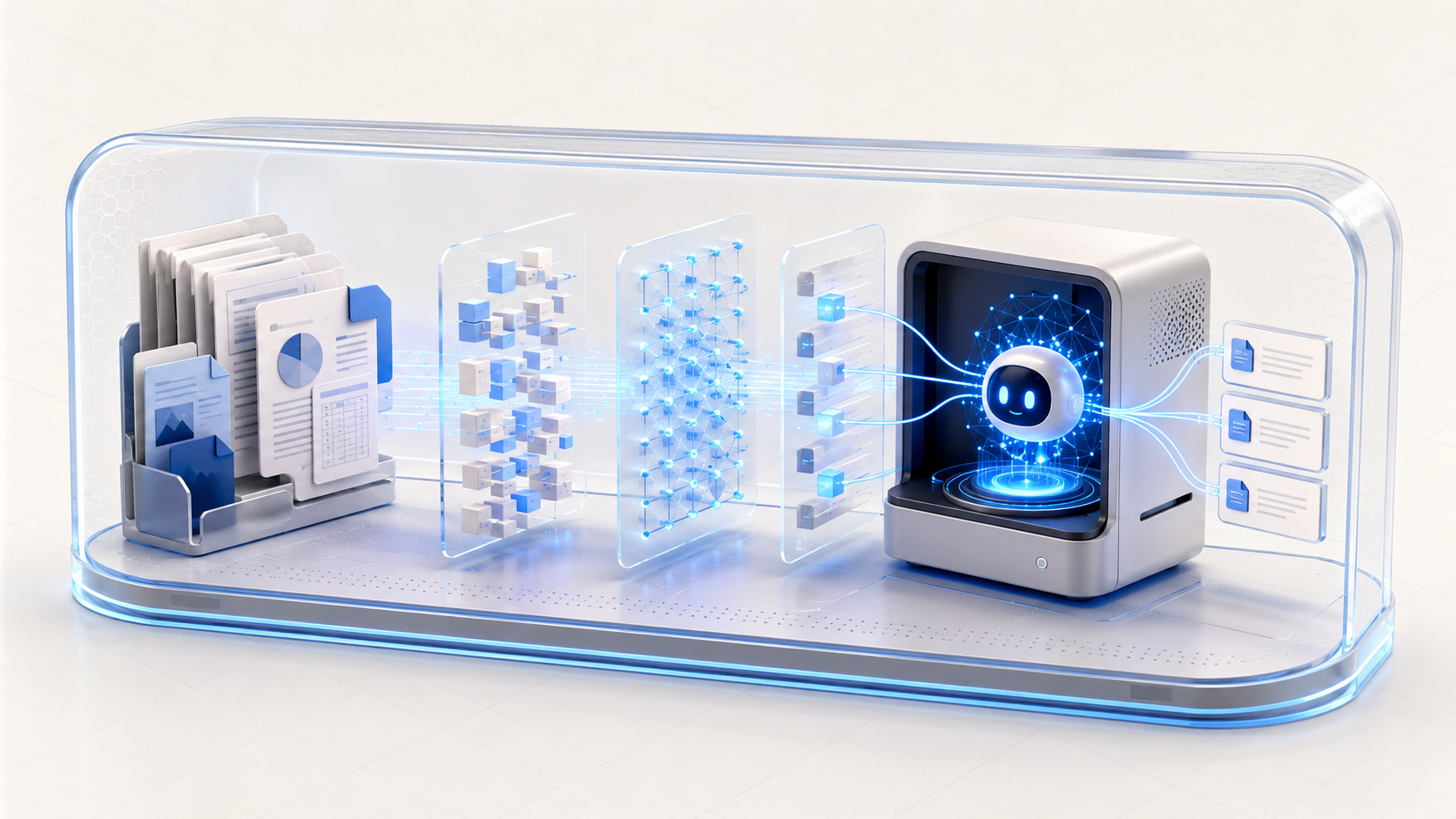
Do not search for one perfect PDF model. Build a simple system that reads the file, finds the right passage, writes an answer, and shows the source.
What should you choose?
For a 16 GB computer, use Qwen 3 8B to write answers and EmbeddingGemma to search the PDF passages. Use Gemma 3 4B instead when pages contain important images or screenshots. The best PDF setup is a pair of models, not one chat model.
This answer assumes the PDF text can be extracted correctly and the RAG app shows the source page beside the answer.
Qwen 3 8B plus EmbeddingGemma
EmbeddingGemma finds passages and Qwen writes a clear answer from them.
Limit: A RAG application is required to connect both models.Granite 3.2 8B plus Nomic Embed Text
This creates a compact text search and answer workflow.
Limit: Test the languages and document style used in your files.Gemma 3 4B plus an embedding model
Gemma can inspect supported page images when plain text extraction loses useful information.
Limit: Do not send every page as an image. Use OCR and search first.Do not paste an entire long PDF into one chat and assume the model has checked every page.
Use the explanations below when you want to know why each step matters.
Test retrieval before blaming the chat model
Use a small PDF with searchable text first. Choose five questions whose answers you can point to on specific pages, plus two questions the document cannot answer. Check the retrieved passage as well as the generated response.
If the correct passage never reaches the model, changing the chat model will not solve the retrieval problem. Check extraction, OCR for scanned pages, chunk size and search results. An embedding model finds related passages; it does not write a trustworthy answer by itself.
Answers identify the correct source, preserve numbers and qualifications, and clearly say when the document does not contain an answer. Test access restrictions before using company files.
Not every PDF is easy to read
Some PDFs contain real text. You can select the words with your mouse. These files are usually easy for a document tool to read.
Other PDFs are made from scanned pictures. The computer must first turn the picture into text. This process is called OCR.
Tables, forms, and pages with many columns can also be difficult. Before blaming the AI model, check whether the words and numbers were taken from the file correctly.
How a private PDF assistant works
First, the system breaks the document into smaller parts. It then saves a special number pattern for each part. These number patterns help the system compare meaning.
When you ask a question, the system searches for the document parts that are closest to your question. It sends those parts to the writing model. The model then writes an answer.
This method is often called RAG. The full name is retrieval-augmented generation. You do not need to remember the long name. The important point is that the system searches before it answers.
You may need more than one model
An embedding model helps find the right part of the document. A writing model uses that part to answer your question.
You may also need a vision model when important information is inside a scan, drawing, chart, or complex table.
A small 3B to 8B writing model can work for simple document questions when the search is good. Hard analysis, several languages, or difficult tables may need a stronger model and better hardware.
A larger writing model cannot use a passage that the search system failed to find.
Every important answer should show proof
- Show the name of the source file.
- Show the page number when possible.
- Let the user open the passage used for the answer.
- Allow the model to say that the answer was not found.
- Keep the source words separate from the model's own explanation.
- Make sure each user can only search files they are allowed to see.
Test before adding private files
Create at least thirty questions with answers you already know. Write down the correct file and page for each answer.
Add some questions that have no answer in the documents. Also test poor scans, old versions, tables, and files with similar names.
Begin with safe sample files. Add private company documents only after the system finds the right pages, protects access, and clearly shows its sources.
Test whether a PDF is ready for AI search
A useful PDF assistant must read the file correctly, find the right passage, and show the page used for the answer.
- 1
Open the PDF
Double-click the file. Try to select one sentence with your mouse.
- 2
Check whether it is a scan
If you cannot select words, the page may be an image. Use a trusted OCR tool to create searchable text before continuing.
- 3
Choose five test questions
Write the exact page that contains each answer.
- 4
Import the PDF
Add it to your local document assistant. Wait for text extraction and indexing to finish.
- 5
Ask and verify
Ask the five questions. Open every cited page and confirm that the answer matches the document.
- The system finds the correct page.
- The answer includes a source the reader can open.
- The assistant admits when the document does not contain the answer.
Official facts and real user evidence
Official documentation supports product and model facts. Community discussions show real setups, failures, and questions. A community result is supporting evidence, not a promise that another computer will perform the same way.
Watch a real test. Check what fits your computer.
See practical local AI tests from DeviceTerra, then use MamiLens to build a hardware-aware shortlist for your own setup.
This guide is educational. Model software, licenses, and hardware support can change. Check official sources before an important deployment.