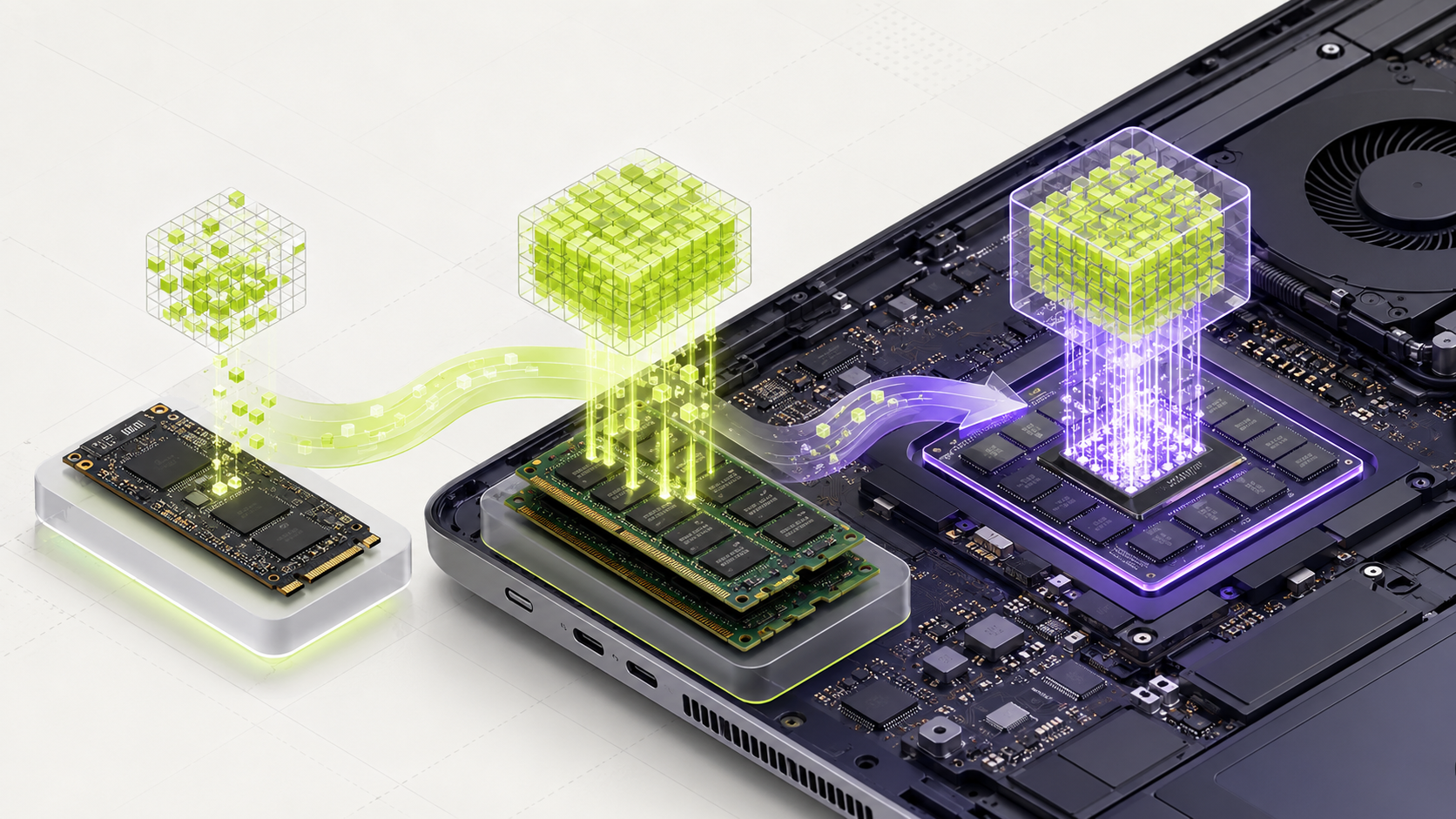
Check how much memory your RTX 3060 has before choosing a model. The 8 GB and 12 GB versions cannot run the same setups equally well.
What should you choose?
For an RTX 3060 with 12 GB of VRAM, Qwen 3 14B Q4 is a useful quality-first test, while Qwen 3 8B is the safer and faster choice. For the 8 GB RTX 3060, use Qwen 3 8B or Qwen 2.5 Coder 7B. Check the card's exact VRAM before choosing.
This assumes a desktop RTX 3060, current NVIDIA drivers, one user, and a quantized model. Laptop versions and cooling limits can behave differently.
Qwen 3 8B Q4
It fits with comfortable GPU memory headroom and handles general work well.
Limit: It may not match a larger model on difficult reasoning.Qwen 3 14B Q4
The model file can fit on a 12 GB card and may improve difficult answers.
Limit: Context and runtime memory can make it tight. Test stability before keeping it.Qwen 3 8B Q4
It is a strong upper starting point for general text work on 8 GB VRAM.
Limit: Keep context moderate and watch dedicated memory.Qwen 2.5 Coder 7B Q4
It is a coding-focused model that fits more safely than 14B coding options.
Limit: Large repositories still need stronger hardware or a narrower workflow.Do not treat the shared-memory value in Task Manager as extra dedicated VRAM.
Use the explanations below when you want to know why each step matters.
Start by checking your graphics card
Not every RTX 3060 is the same. Some desktop cards have 12 GB of video memory. Other versions have 8 GB. This memory is also called VRAM.
VRAM is the fast memory on your graphics card. The AI model, your prompt, and the software running the model all need some of this space. That is why the amount of VRAM matters.
On Windows, open Task Manager, select Performance, and then select GPU. Look for Dedicated GPU memory. Do not use the shared-memory number.
What model size should you try first?
A model with about 7 billion or 8 billion parameters is a good place to start. Look for a smaller Q4 version. Q4 means the model has been reduced so it uses less memory.
If you have the 12 GB card, you may also test a larger file or give the model more room for a longer conversation. If you have the 8 GB card, stay with a smaller file first.
Do not fill every part of the VRAM. The AI software needs some free space too. A model that barely fits may become slow or stop working when the conversation gets longer.
Choose a model that leaves some VRAM free. Do not choose one only because its file can just fit.
Which app should you use?
LM Studio is a good choice if you want buttons, menus, and a normal desktop app. It also lets you see how much of the model is using the GPU.
Ollama is a good choice if you want simple commands or if another app needs to connect to your local model.
llama.cpp gives you more control, but it can feel harder for a beginner. Use it when you want to change detailed settings or test exactly how many model layers use the GPU.
Test the model with real work
- Write down ten tasks you truly want the model to perform.
- Run the same ten tasks on every model you test.
- Check how long you wait before the first word appears.
- Watch the VRAM use while the model is working.
- Check whether the answers are correct and follow your instructions.
- Keep the smallest model that does the job well enough.
What is the RTX 3060 good for?
An RTX 3060 can be useful for writing, summaries, private document search, coding help, and some image tasks. It is a strong starting card for one person using local AI.
It does not become a powerful business server just because it can open a model. If several people will use it at once, test several users at once. Also check heat, power use, and system stability.
Your computer still needs enough normal RAM. The CPU, storage speed, and cooling also affect the full experience.
Check your RTX 3060 and run a first test
The RTX 3060 exists with different amounts of video memory. Check the exact card before choosing a model.
- 1
Open Task Manager
Press Ctrl, Shift, and Esc together. Select Performance on the left.
- 2
Open the GPU page
Select GPU. If there are two GPU pages, choose the one named NVIDIA GeForce RTX 3060.
- 3
Record dedicated memory
Look for Dedicated GPU memory. Write down whether it shows about 8 GB or 12 GB.
- 4
Install and run Ollama
Download Ollama from ollama.com/download. Open PowerShell and start a small test model.
ollama run qwen3:4b - 5
Watch GPU memory
Keep Task Manager open while asking a question. Watch Dedicated GPU memory and GPU activity.
- You know whether the card is the 8 GB or 12 GB version.
- The model answers while the computer remains stable.
- You saved the model name, memory use, and test result.
Official facts and real user evidence
Official documentation supports product and model facts. Community discussions show real setups, failures, and questions. A community result is supporting evidence, not a promise that another computer will perform the same way.
Watch a real test. Check what fits your computer.
See practical local AI tests from DeviceTerra, then use MamiLens to build a hardware-aware shortlist for your own setup.
This guide is educational. Model software, licenses, and hardware support can change. Check official sources before an important deployment.