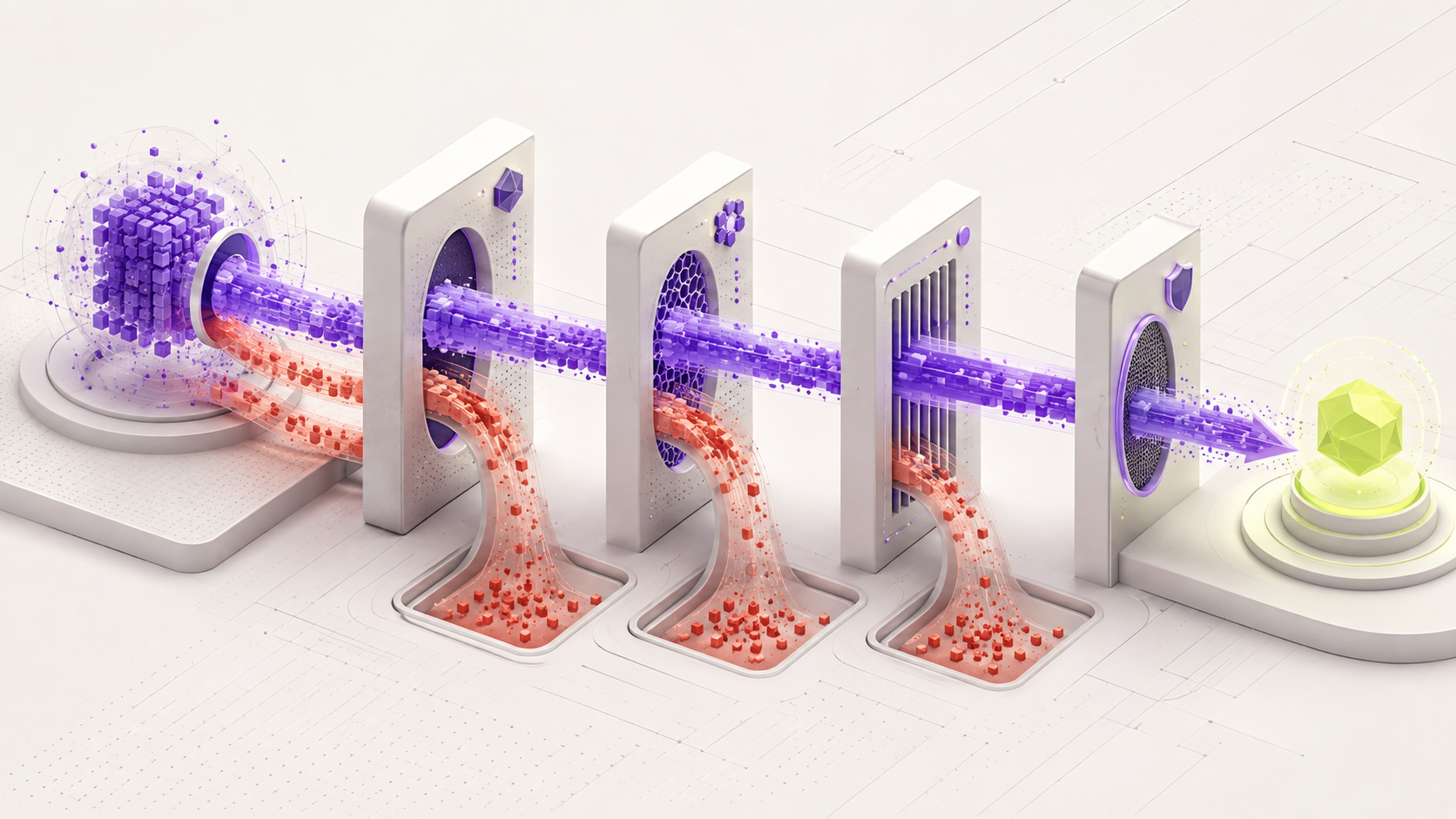
A text-only model cannot understand an image. Choose a supported vision model and test it on the exact screenshots, charts, or photos used in your work.
What should you choose?
Gemma 3 4B is the best small local vision model in the current MamiLens list. It is suitable for screenshots, visible interface questions, and simple image descriptions. Use a larger vision model only when your hardware and tests show the 4B version is not accurate enough.
The engine must support image input for the exact model. Clear crops work better than full screens with tiny text.
Gemma 3 4B
It accepts text and images while remaining small enough for many 16 GB systems and supported GPUs.
Limit: It can miss small text and fine visual details.Mistral Small 3.2 24B
It provides a larger multimodal option for harder work.
Limit: It needs about 24 GB of system RAM or stronger GPU memory planning.Do not use a general vision model as the final authority for medicine, safety, identity, or financial decisions.
Use the explanations below when you want to know why each step matters.
Vision needs a different model
A normal text model reads text tokens. A vision-language model can also receive an image and produce text about it. The model and engine must both support the vision input.
Do not assume every model in a family can see images. Check the exact model variant and the engine documentation.
Match the model to the image job
- Use screenshot tests for software support and interface questions.
- Use document-image tests for forms, scans, and receipts.
- Use chart tests for labels, numbers, and comparisons.
- Use photo tests for visible objects and conditions.
- Do not use a general vision model as a medical or safety authority.
Resolution changes the result
Small text and fine details may disappear when an image is reduced. Larger images can also require more processing time and memory.
Use clear crops when possible. Keep the important area large enough to read, and do not send private parts of the screen that the model does not need.
Build a visual test
- Collect twenty real images without private information.
- Write the expected facts before testing.
- Include blurry, crowded, and difficult examples.
- Record missed text, invented objects, and wrong numbers.
- Test the same images with the same prompt.
- Set a pass mark for the exact job.
Use human checks
A vision model can sound certain when it is wrong. Let the user open the original image beside the answer. Ask for the visible evidence behind important claims.
For money, health, security, or safety decisions, use the model only as an assistant and require a qualified person to confirm the result.
Test a vision model with safe screenshots
A text-only model cannot see a screenshot. You need a vision model, and the engine must support sending images to that exact model.
- 1
Create a safe screenshot
Open a sample app with no private data. On Windows press Windows, Shift, and S. Drag around the useful area and save the image.
- 2
Choose a vision model
Use MamiLens or your engine's model page. Confirm that the exact version accepts images.
- 3
Open the vision model
Load it in LM Studio or another engine that supports image input.
- 4
Attach the screenshot
Use the image or paperclip button in the chat. Select the saved screenshot.
- 5
Ask a checkable question
Ask the model to list the visible buttons and explain the next safe step. Compare the answer with the image yourself.
- The model receives the image instead of only its file name.
- It identifies visible details without inventing hidden ones.
- Private areas are cropped out before upload.
Official facts and real user evidence
Official documentation supports product and model facts. Community discussions show real setups, failures, and questions. A community result is supporting evidence, not a promise that another computer will perform the same way.
Find a model your computer can run.
MamiLens checks your hardware and shows a careful starting point.
Run the free compatibility check →This guide is educational. Model software, licenses, and hardware support can change. Check official sources before an important deployment.