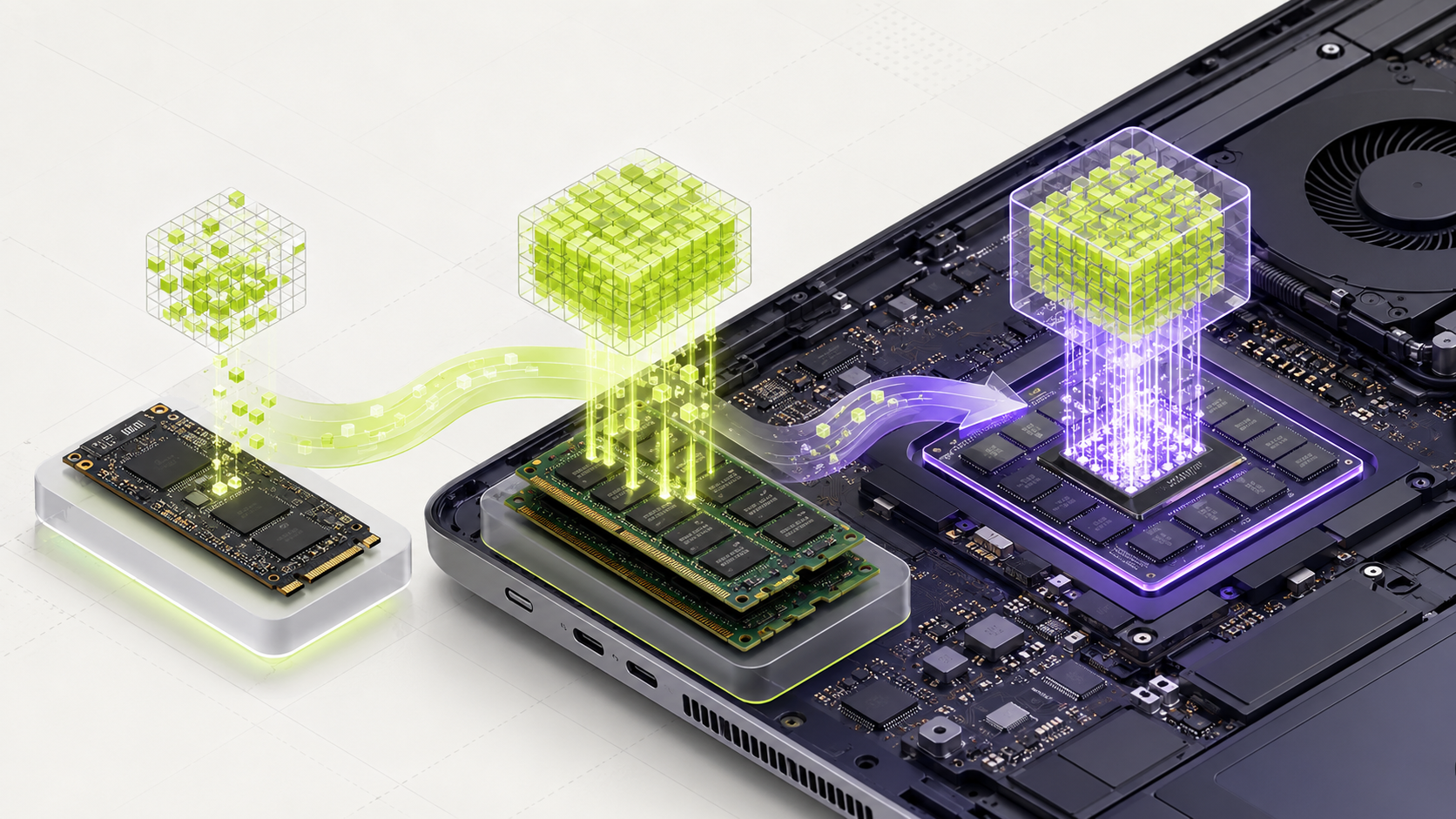
Storage saves the model. RAM or VRAM helps run it. Your computer also needs free memory for the system and your other apps.
Find your RAM and GPU memory on Windows
Before downloading a model, find out how much working memory your computer has. This takes only a few minutes and can save you from downloading a file that will not run.
- 1
Open Task Manager
Press Ctrl, Shift, and Esc at the same time. If that does not work, right-click the Start button and select Task Manager.
- 2
Show the full Task Manager
If you only see a small list of open apps, select More details near the bottom.
- 3
Find your RAM
Select Performance on the left, then select Memory. The large number near the top shows your total RAM.
- 4
Find your GPU memory
Still under Performance, select GPU. Look for Dedicated GPU memory. This is your VRAM. If you have more than one GPU, check each GPU page.
- 5
Write the numbers down
Record total RAM, dedicated GPU memory, GPU name, and free storage. Enter these values into the MamiLens hardware checker.
- You know the difference between RAM and dedicated VRAM.
- You recorded the exact GPU name instead of writing only NVIDIA, AMD, or Intel.
- You did not count shared GPU memory as dedicated VRAM.
If something goes wrong
- If Performance is missing, enlarge the Task Manager window or select the menu icon in its top-left corner.
- On a Mac, open the Apple menu, select About This Mac, and record the chip and memory shown.
Local AI Explained: Hardware, Setup and Models
Syntax tests local models on a 128 GB memory mini PC and explains how hardware, setup, and model choice affect basic tasks and coding. This independently produced video adds a practical hardware perspective to the guide.
Use the explanations below when you want to know why each step matters.
Work through one memory example
Suppose a model file is 5 GB. Multiplying that by the calculator’s 1.1 loading factor gives a 5.5 GB weights estimate. On a 16 GB CPU-only computer, its 5 GB system reserve leaves 11 GB for model work. A further 1 GB context allowance would put the planning total at 11.5 GB before rounding. These are example inputs, not measurements of a named model.
The real context cache depends on model architecture, prompt length and parallel requests. Two people generating at once need separate request state even when they share model weights. A graphics card also keeps memory for the display and runtime, so its advertised VRAM is not all available to the model.
Plan storage separately
A download must fit on the drive used by the engine. Free space on another drive does not help until you change the model location. Keep room for temporary downloads, runtime files and additional model versions.
The calculator uses a conservative planning allowance: model file plus the larger of 2 GB or 15 percent of that file, plus 3 GB for installation overhead. Large document indexes, container images and backups may need more. Check the actual download size before starting.
Storage, RAM, and VRAM are different
Storage is the space on your SSD or hard drive. It holds the downloaded model file. RAM is the short-term memory used by your whole computer. VRAM is fast memory used by a graphics card, also called a GPU.
A 5 GB model needs about 5 GB of storage. It needs more working memory when it runs. Your operating system, AI app, prompt, and other programs also use memory.
What quantization means
Quantization is a way to make a model file smaller. It stores the model using less detail. Names such as Q4, Q5, and Q8 often show how much detail is kept.
A Q4 model is often a good first test because it uses less memory. A larger file may give better answers, but only if your computer can run it well.
How much RAM should you have?
An 8 GB computer should start with very small models. A 16 GB computer can try many models between 3B and 8B. The letter B means billion parameters, which are the small values the model learned during training.
These are starting points, not promises. Leave free memory for Windows, macOS, or Linux and for the apps you keep open.
The model must fit with extra room left for the computer and the AI app.
Why a GPU helps
A supported GPU can make the model answer much faster. If the full model fits inside VRAM, speed is often better. Part of the model can also use the GPU when the full model does not fit.
A GPU does not make a weak answer correct. You still need a model that is good at your task.
Check before you download
- Find your total RAM and VRAM.
- Check the exact file size and quantization.
- Leave memory for your system and other apps.
- Start with a short context, which means less text in each conversation.
- Test speed and answer quality on your own computer.
Official facts and real user evidence
Official documentation supports product and model facts. Community discussions show real setups, failures, and questions. A community result is supporting evidence, not a promise that another computer will perform the same way.
Find a model your computer can run.
MamiLens checks your hardware and shows a careful starting point.
Run the free compatibility check →This guide is educational. Model software, licenses, and hardware support can change. Check official sources before an important deployment.