On this page
The short answerWhy MoE models are differentWhat real 8 GB tests measuredHow expert offloading worksA beginner-friendly way to try itWhen this setup may be a poor fitThe practical conclusionSourcesAn 8 GB graphics card can help run some 30B mixture-of-experts models when the engine splits work between GPU memory and system RAM. The model does not fit fully in the GPU, and the results depend on the exact setup.
Here is what matters, why it matters and how to check it on your own setup.
The short answer
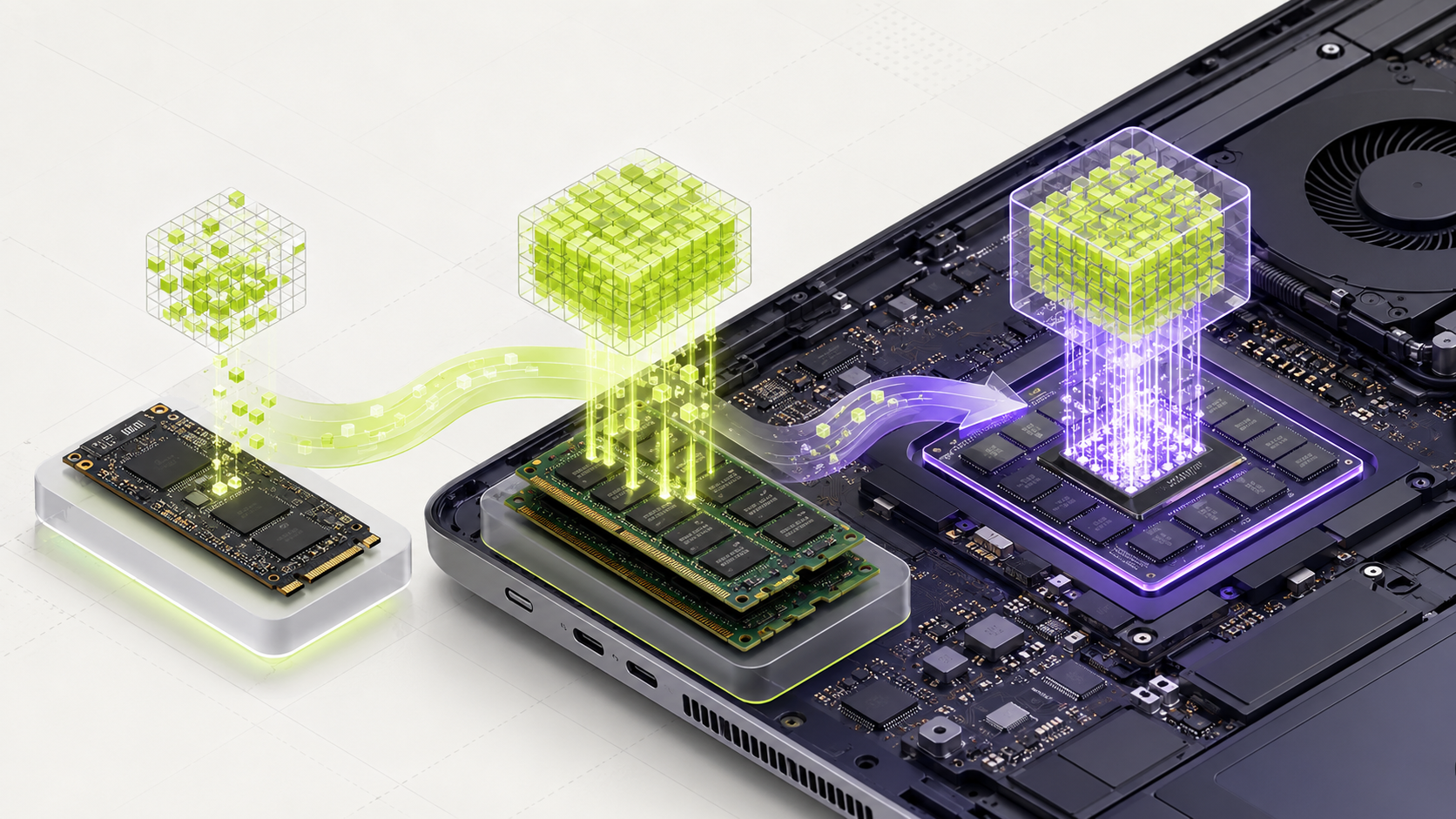
Yes, some 8 GB graphics cards can run certain 30B-class mixture-of-experts (MoE) models with enough system RAM. But the whole model does not fit inside the graphics card. The software keeps some parts in fast GPU memory and uses system RAM for other parts.
This can work well for a particular computer and model. It is not a promise that every 30B model will run, or that it will feel fast on every 8 GB card. The reports below are individual tests, not one controlled comparison.
Keeps the parts the GPU can handle, plus space for context and the display.
Holds expert weights and other model data that do not fit in VRAM.
One tested Q4 model file was 17.7 GB. Leave extra free space for the app and other files.
Why MoE models are different
Qwen3-30B-A3B has about 30.5 billion total parameters. It activates about 3.3 billion of them for each token it creates. A token is a small piece of text, such as a word or part of a word.
The smaller active number can reduce the amount of math done for each token. It does not shrink the full model file to 3.3B size. The engine still needs access to the model's other expert weights, so the total model size and the available RAM still matter.
The model card lists 30.5B total and 3.3B activated parameters. Active parameters describe work per token; they do not describe the full file size.
What real 8 GB tests measured
The table lists separate reports. The GPUs, model files, memory, and settings are different, so the numbers should not be treated as a ranking or as a speed guarantee. The last row is a different 35B model and a specific cache test; it is included to show what one tuned test measured, not what a Qwen model will do.
| Reported setup | Model and method | Reported result | Important limit |
|---|---|---|---|
| RTX 3060 Ti, 8 GB VRAM, about 32 GB RAM; Windows; i5-14600KF | Qwen3-Coder-30B-A3B, UD-Q4_K_XL, llama.cpp; --n-cpu-moe 40 | 32.49 tokens/s generation; 760 MiB VRAM free | One author's setup. The author also reported Docker RAM limits and different results at other settings. |
| RTX 2070 SUPER, 8 GB VRAM, 32 GB single-channel DDR5-5600; Linux; i5-12400F | Qwen3-Coder-30B-A3B, Q4_K_M, llama.cpp CUDA; -ncmoe 36 | 28.7–38.4 tokens/s generation | A separate reproducible community report using its own prompt and 36K context. |
| RTX 3070, 8 GB VRAM; llama.cpp MoE-cache test | Cyber-Tiel-Coder-35B-A3B, UD-Q4_K_S; 3,136 MiB cache; CPU share 0.95 | 62.4 tokens/s measured in that run | Different 35B model. The test notes its own model, cache, thread, and context settings; do not apply this speed to Qwen or another PC. |
Tokens per second measures text generation. It does not tell you how long a large prompt takes to process, whether the model gives correct answers, or whether the same speed will hold in your daily app.
How expert offloading works
An MoE model has groups of expert weights. For each token, a router chooses a small group of experts. With expert offloading, the engine can keep some weights in VRAM and place other expert weights in system RAM.
Newer llama.cpp builds also have an optional expert cache. It can keep often-used experts in GPU memory. A tuning tool measures a few settings on your machine and estimates a useful cache size. The best setting depends on the computer, model, context, and memory path.
The model router picks experts for the next token.
If an expert is already in VRAM, the GPU can use it.
Other experts may be copied to the GPU or computed from host RAM, depending on the settings.
A beginner-friendly way to try it
LM Studio added a setting called “Force Model Expert Weights onto CPU” in version 0.3.23. Its release note says this can help when there is not enough dedicated GPU memory for all expert weights. Keep the setting off when the whole model fits in GPU memory.
If you use llama.cpp, its options and names change between builds. Read the current official documentation and check your own server's help output before copying a command. Start with a shorter context and one model. Record the exact model file, quantization, engine version, context, and generation speed.
- Check the exact GPU model and available VRAM. The operating system and display also use some VRAM.
- Use at least the model file's full size in free storage, plus extra space. The reported Qwen file was about 17.7 GB.
- Close heavy apps before the first run. Watch system RAM and GPU memory while the model loads.
- Begin with a modest context such as 4K or 8K. Increase it only after the model runs reliably.
- Test your own prompts. Compare answer quality and waiting time, not only tokens per second.
When this setup may be a poor fit
System RAM speed, memory channel setup, CPU, driver, context length, model quantization, and the engine all affect results. One person may get a useful speed while another sees pauses, slow prompt processing, or an out-of-memory error.
A 30B model file can take much of a 32 GB computer's working memory. Long context, Docker limits, a browser, an editor, and other apps can push it over the limit. If the computer starts swapping memory to disk, close apps or choose a smaller model. A faster GPU with more VRAM can also make the setup simpler.
Two files from one model family can have different sizes and memory needs.
Memory speed and usable headroom affect how the split behaves.
Longer input uses more memory and takes time to process.
The practical conclusion
An 8 GB GPU and 32 GB of system RAM can run some large MoE models with a suitable engine. Real reports show that this can be useful, but the results come from specific model files and machines. The 62.4 tokens-per-second result belongs to a different 35B model and one tuned RTX 3070 test.
Before you download a large file, check the exact model and settings in the sources. Then use the MamiLens calculator to check your hardware and start with a small, repeatable test.
A benchmark proves that one setup worked once. It does not prove that the same model, speed, or context will work on your computer.
Words you may see in this guide
- RAM
- The working memory used by your computer and apps.
- VRAM
- The memory on a dedicated graphics card. Shared graphics may use system RAM.
- Context
- The text and other input the model can use for its current answer.
- Quantization
- A way to make model weights smaller. It can change memory use and answer quality.
- Engine
- The software that loads the model and runs it.
- RAG
- A workflow that finds useful document passages before asking a model to answer.
- Benchmark
- A repeatable test. A result is useful only when you know the setup and task.
Official facts and real user evidence
Official documentation supports product and model facts. Community discussions show real setups, failures, and questions. A community result is supporting evidence, not a promise that another computer will perform the same way.
Watch a real test. Check what fits your computer.
See practical local AI tests from DeviceTerra, then use MamiLens to build a hardware-aware shortlist for your own setup.
This guide is educational. Model software, licenses, and hardware support can change. Check official sources before an important deployment.