
On this page
The short answerWhy the model has ‘experts’Four test words in plain EnglishHow much space and memory does it need?What does the speed feel like?Should you use Colibri or buy a computer for it?How to try it safelyCommon questionsSourcesColibri can run some models that are much larger than a computer’s fast memory. That does not make them small or quick. Published 744B tests used large memory pools and hundreds of gigabytes of storage.
Here is what matters, why it matters and how to check it on your own setup.
The short answer
Colibri is a free, open-source program for running AI models on your own computer. It can split a model across the computer’s graphics memory, main memory, and SSD. It is made for models that are too large to fit in one place.
That can help you try a very large model without a room full of graphics cards. But it does not remove the need for a lot of memory or disk space. When the computer has to read model parts from an SSD, answers can take a long time.
The safest conclusion from the public tests we found: Colibri is an interesting experiment for powerful systems and patient users. We did not find proof that a normal 25 GB laptop can run the 744B model at a useful speed.
Check the exact model file, free SSD space, available RAM, Colibri version, and your expected wait time. A model name alone cannot tell you if it will work well on your computer.
Why the model has ‘experts’
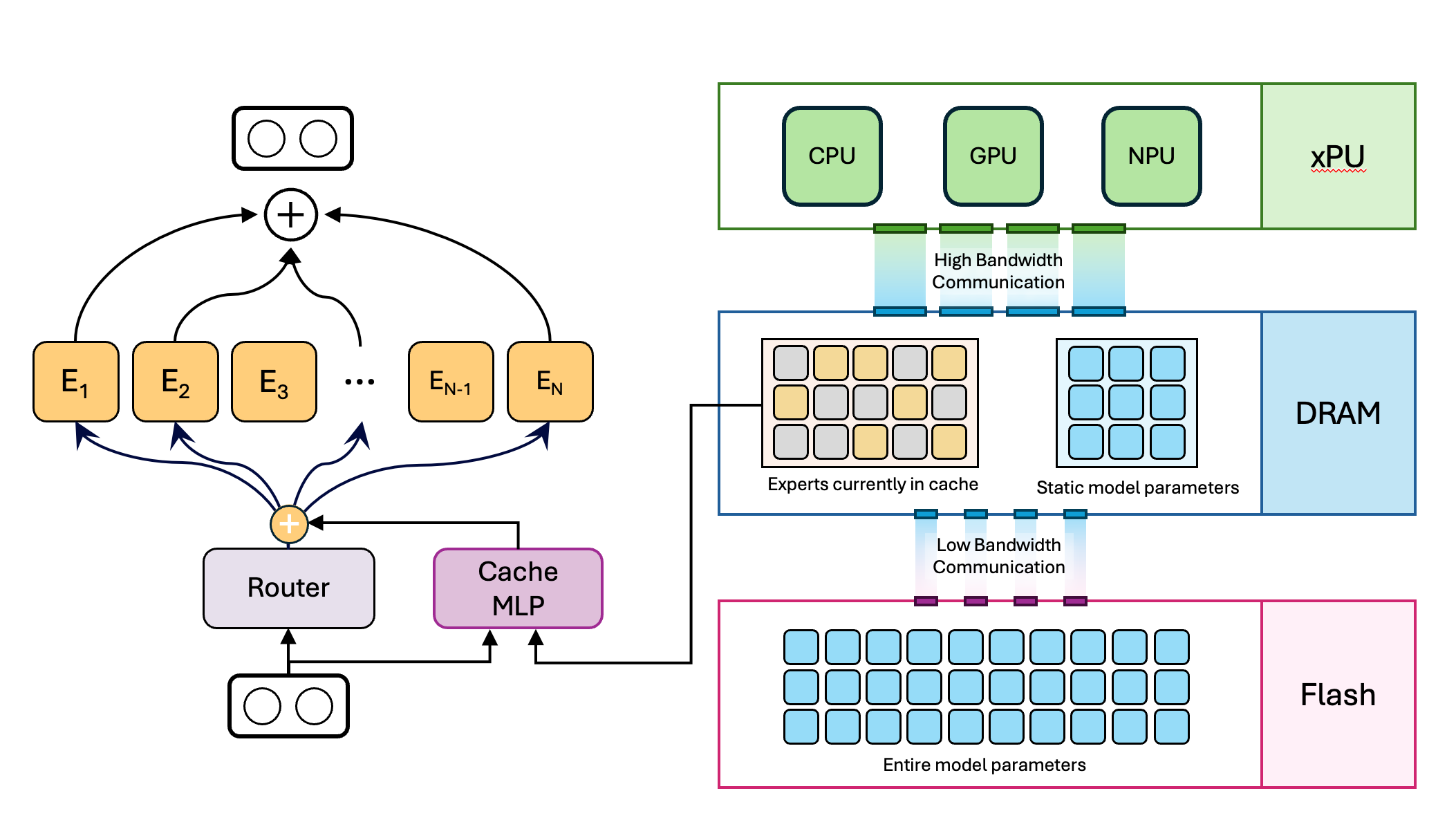
Some AI models are made of many smaller parts called experts. For each piece of text, a traffic director inside the model chooses which experts to use. The model still needs all of its stored parts available somewhere, even if it only uses some of them for one word.
Colibri can keep some parts in fast memory and read other parts from storage when they are needed. Fast memory is like a small desk. An SSD is like a large filing cabinet: it holds more, but finding each item takes longer.
This is a simplified explanation based on Colibri’s project description. The exact placement depends on the model, computer, and settings.
Four test words in plain English
744B means about 744 billion learned number values inside the model. It is a size label, not a promise that the model will answer 744 billion questions.
INT4 and IQ1_S are names for ways of packing a model file more tightly. A smaller file can take less disk space, but different files may give different speed or answer quality. That is why the benchmark table keeps each file name beside its result.
A token is a small piece of text. It can be a whole short word or part of a longer word. So tokens per second is not exactly words per second.
Metal and Vulkan are software paths that let a program use a graphics chip. They are not model names.
How much space and memory does it need?
There is no single file size for a 744B model. The amount changes with the model copy and how much it has been made smaller. One Colibri v2.1.0 test lists a 202 GB GLM-5.2 file. Two detailed community reports describe INT4 GLM-5.2 files around 379–384 GB.
Those numbers are the saved model files. The computer also needs working memory for the model, the Colibri program, your question, and the answer. In one CPU-only test, Colibri used about 106 GB of main memory. Another Mac test asked for 110 GB of RAM and kept about 92 GB of model parts in memory.
This is why the draft claim that 25 GB of RAM is enough for a 744B model should not be treated as a tested buying guide. We found no cited test showing that setup. Colibri’s own general minimum is for smaller model tests, not a promise for a 744B model.
| Test setup | Model copy and space | Reported speed | What it tells us |
|---|---|---|---|
| Ryzen AI Max+ 395, 128 GB unified memory, CPU only; Colibri v1.0.0 | INT4, 383.8 GB | 0.78–0.80 tokens/second on sustained test; about 2.5–3 minutes for 128 tokens | A real report on a high-memory machine. Not a 25 GB laptop test. |
| Apple Silicon, Metal; report requested 110 GB RAM | INT4, 378.9 GB | 2.99 tokens/second with standard routing; about 4.0 with a changed routing setting | The faster number changes how experts are chosen, so it is not a like-for-like comparison. The report does not name the Mac model. |
| i5-13500, 62 GB RAM, RTX PRO 4000 Blackwell 24 GB; two NVMe drives | IQ1_S, 202 GB; Vulkan | 0.633–0.658 tokens/second | A different, smaller model file and different machine. It still took about 3 minutes for 128 tokens. |
The computers, model files, software versions, and settings differ. These results show what particular people measured. They do not predict your computer’s speed.
What does the speed feel like?
A token is a small piece of text. At 0.8 tokens per second, a 128-token answer takes about 160 seconds, or nearly three minutes. At 3 tokens per second, the same answer takes about 43 seconds. These are simple calculations from the reports above, not a promise for your machine.
The first answer can also take longer while the model starts or reads new parts from the SSD. Longer chats may need more memory. A fast NVMe SSD helps move files, but it cannot make SSD storage as quick as memory beside the processor.
At 0.8 tokens each second
At 2.99 tokens each second
At 0.65 tokens each second
Should you use Colibri or buy a computer for it?
Choose Colibri if you like testing new software, have a large SSD and plenty of memory, and can wait for answers. It may also suit a one-off question when a very large model is more important than speed.
For everyday chat, writing, or coding on a laptop, start with a smaller model in Ollama or LM Studio. These apps are easier for most beginners. A model that fits fully in your computer’s memory is usually a better first choice for interactive work.
Do not buy an expensive computer just because one report ran GLM-5.2. First find the exact model file you want, its current size, and a test from the same computer class. Prices and available models change, so check before spending money.
- For 8–32 GB RAM: test a small model first; do not plan on a smooth 744B chat.
- For a large-memory machine: check actual free memory, not only the number printed on the box.
- For large Colibri models: allow hundreds of gigabytes of SSD space when the exact file requires it.
- For a buying decision: compare the price of more memory with a smaller model that already does your job.
How to try it safely
Use the current instructions and download links in Colibri’s official project. Its setup tool checks your computer and can help choose a model. The names and install steps may change between releases, so do not copy an old command from a video without checking the current guide.
Start with a smaller model before downloading a multi-hundred-gigabyte file. Keep enough free disk space for the model and temporary files. Run a short test question, note how long the first and next answers take, and check whether the computer still has memory for normal work.
- Use only model files listed by the official project or the model maker.
- Check the file size and license before downloading.
- Do not enter private work or customer information in an untested setup.
- Stop if the computer runs out of memory or begins using the SSD as emergency memory.
Common questions
Can Colibri run GLM-5.2 on a 25 GB computer? We could not confirm that from the reports we reviewed. The detailed tests we found used 62 GB or more of system memory, including one that requested 110 GB. Treat 25 GB as unproven, not a safe recommendation.
Does Colibri make a 744B model fast? No. The tested speeds ranged from about 0.65 to 3 tokens each second under different setups. One report reached about 4 only after changing how the model selected experts.
How much SSD space should I leave free? Check the exact file. The reports above range from 202 GB to about 384 GB for GLM-5.2 copies. Leave extra free space for downloads and temporary files.
Is Colibri better than Ollama or LM Studio? It solves a different problem. Colibri aims to run very large models with memory and storage tiers. Ollama and LM Studio are easier starting points for smaller models that fit your computer.
Words you may see in this guide
- RAM
- The working memory used by your computer and apps.
- VRAM
- The memory on a dedicated graphics card. Shared graphics may use system RAM.
- Context
- The text and other input the model can use for its current answer.
- Quantization
- A way to make model weights smaller. It can change memory use and answer quality.
- Engine
- The software that loads the model and runs it.
- RAG
- A workflow that finds useful document passages before asking a model to answer.
- Benchmark
- A repeatable test. A result is useful only when you know the setup and task.
Official facts and real user evidence
Official documentation supports product and model facts. Community discussions show real setups, failures, and questions. A community result is supporting evidence, not a promise that another computer will perform the same way.
- Colibri official repository and setup guide ↗
- Colibri v2.1.0 release benchmarks and hardware notes ↗
- Community CPU-only GLM-5.2 benchmark on Ryzen AI Max+ 395 ↗
- Community Apple Silicon GLM-5.2 benchmark and routing caveat ↗
- Cache-MoE research paper: expert caching on memory-limited devices ↗
- Research diagram and paper listing by Babak Ehteshami Bejnordi ↗
Watch a real test. Check what fits your computer.
See practical local AI tests from DeviceTerra, then use MamiLens to build a hardware-aware shortlist for your own setup.
This guide is educational. Model software, licenses, and hardware support can change. Check official sources before an important deployment.