On this page
The short answerWhat the KV cache doesEstimate the memory before you startWhat published cache tests foundChoose a cache setting carefullySet it in llama.cpp or OllamaIf the model still runs out of memorySourcesLong chats and large documents need extra working memory. A smaller KV cache can save space, but its effect on answers depends on the exact model and task.
Video explainer: KV cache and local AI memory
Watch this explainer with the guide to see why a model keeps working memory for earlier text, how longer context can use more memory, and why cache settings involve a trade-off. The calculations and model-specific test results below add the detail you need to check your own setup.
Watch on YouTube or turn on captions ↗Here is what matters, why it matters and how to check it on your own setup.
The short answer
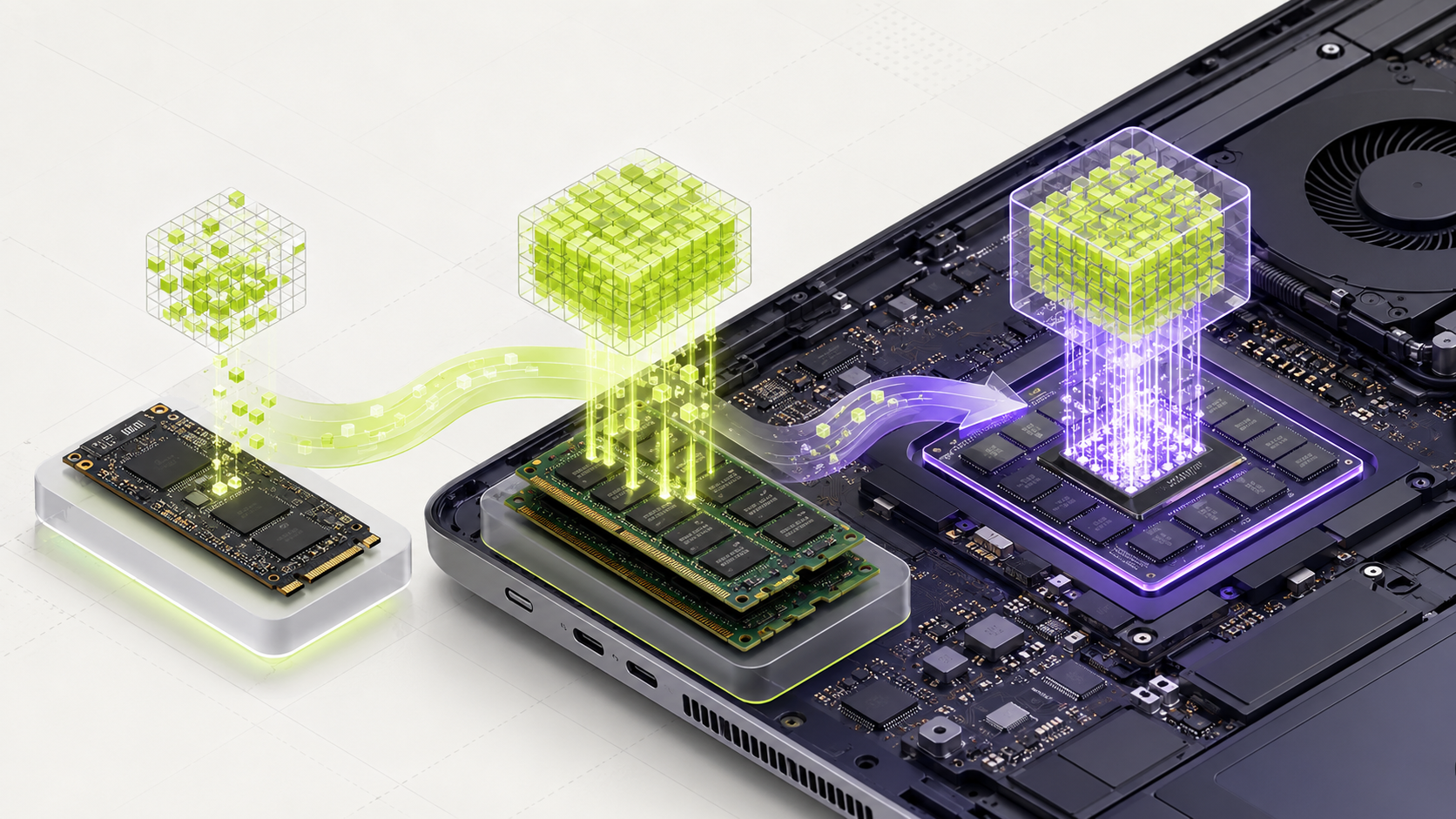
A model can load at a short context and still run out of memory when you give it a long chat, a large document, or several requests at once. The growing memory use is often the KV cache, which stores information the model needs from earlier words.
This cache is separate from the model file. It grows as the context grows. You can lower its memory use with Q8_0 or Q4_0 cache settings in supported software, but smaller cache formats can change answers. There is no setting that is guaranteed to work equally well for every model.
The downloaded model values loaded into RAM or VRAM.
Working memory for the prompt, chat history, and generated answer.
The operating system, AI app, and temporary calculations need room too.
What the KV cache does
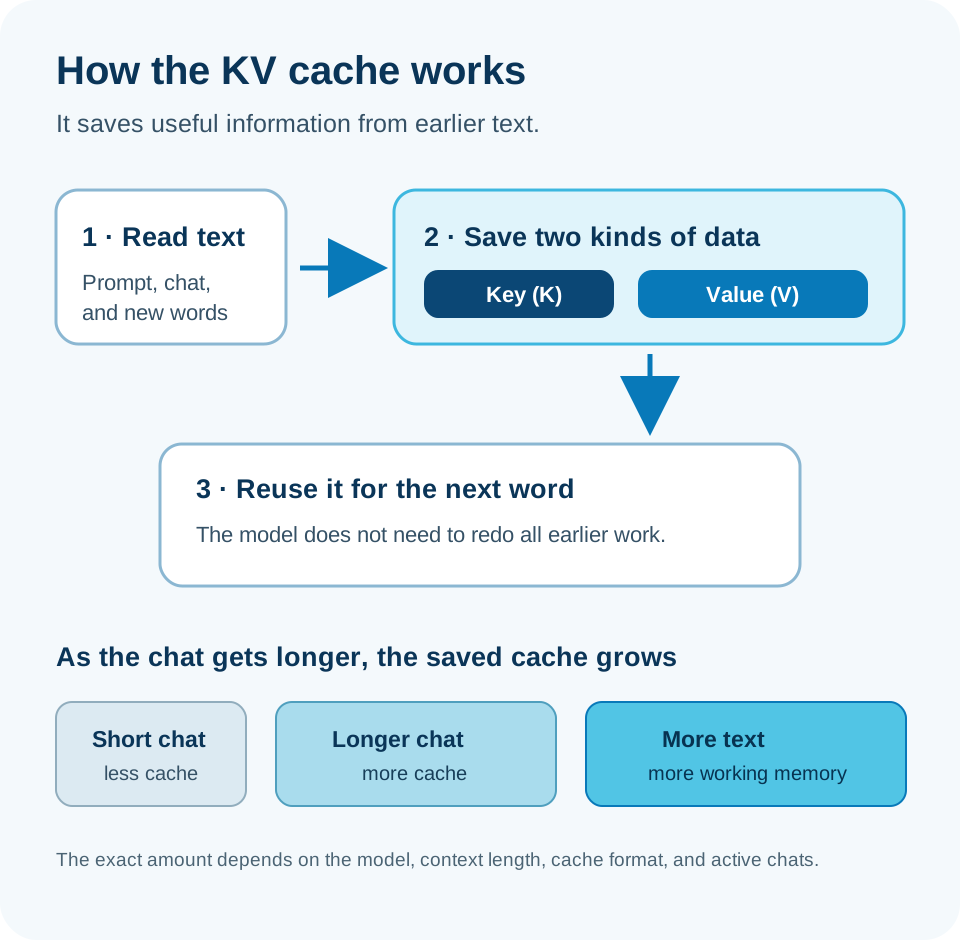
While a model reads your prompt and writes an answer, it keeps two kinds of information for earlier tokens: keys and values. A token is a small piece of text, such as a whole word or part of a word. The cache lets the model reuse earlier work instead of calculating it all again for every new token.
The cache is useful, but it takes memory. More context means more tokens to remember. A longer chat, a pasted report, and a second active chat can all increase the total.
This simplified view shows why the cache grows as the model reads more text. The exact size depends on the model design and settings.
Estimate the memory before you start
For one chat, a simple FP16 cache estimate is: 2 × layers × key/value heads × head size × 2 bytes × context tokens. The first 2 counts keys and values. The last 2 is the number of bytes used by each FP16 value. For several chats running at once, multiply the estimate by the number of active chats.
This estimates cache memory only. It does not include the model weights, temporary work space, the app, or the operating system. Some model designs use sliding windows or other attention methods, so the exact cache can be different.
| Model setup | At 4K context | At 32K context | At model's listed limit |
|---|---|---|---|
| Llama 3.1 8B (32 layers, 8 KV heads, 128 head size) | About 0.5 GiB | About 4 GiB | About 16 GiB at 128K |
| Qwen3-32B (64 layers, 8 KV heads, 128 head size) | About 1 GiB | About 8 GiB | About 10 GiB at 40,960 tokens |
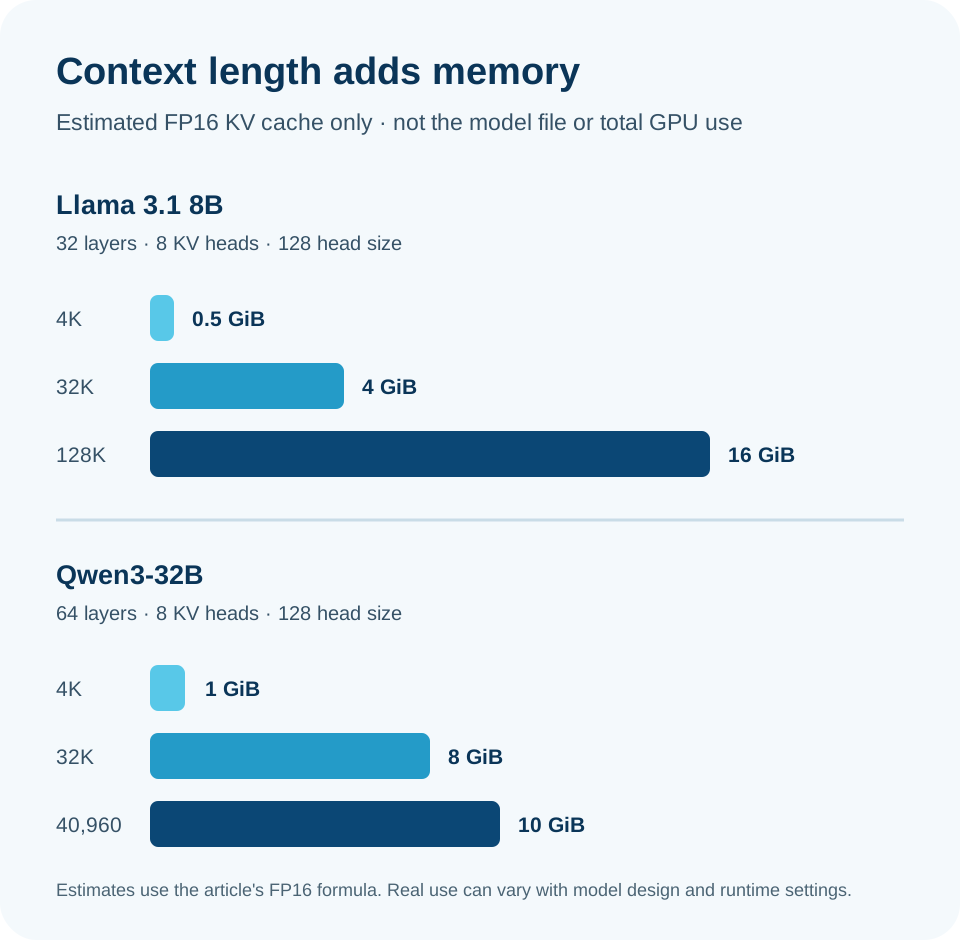
Qwen3-32B lists a 40,960-token context limit. Its estimated FP16 cache at that limit is about 10 GiB by itself. Keep extra memory for the model, software, and other open apps.
What published cache tests found
Q8_0 stores cache values in 8-bit form. Ollama's FAQ says it uses about half the memory of F16. Q4_0 uses about one quarter of F16 cache memory, but it can change answers more. Those are cache estimates; they do not mean your whole program will use half or one quarter as much memory.
A 2026 LocalBench study compared four Qwen and Gemma model files with the same BF16 weights and different cache settings. It used about 250,000 tokens across coding, chat, tool use, science, non-English text, and long documents. The table shows examples from that test. KL divergence measures how much next-token probabilities changed; it is not a direct score of answer correctness. The study does not give one speed result that applies to every computer, so this guide does not present its results as a tokens-per-second promise.
| Model tested | Q8_0 result | Q4_0 result | What this tells us |
|---|---|---|---|
| Qwen 3.6 27B and 35B A3B | Reported below 0.04 KL | About 0.087–0.117 KL | These tested Qwen files changed less than the tested Gemma files. |
| Gemma 4 31B | 0.108 KL | Varies by task in the report | Do not assume Q8_0 is invisible on every model. |
| Gemma 4 26B A4B | 0.377 KL | 1.088 KL; 68% top-token agreement | This tested Gemma model was more sensitive to cache compression. |
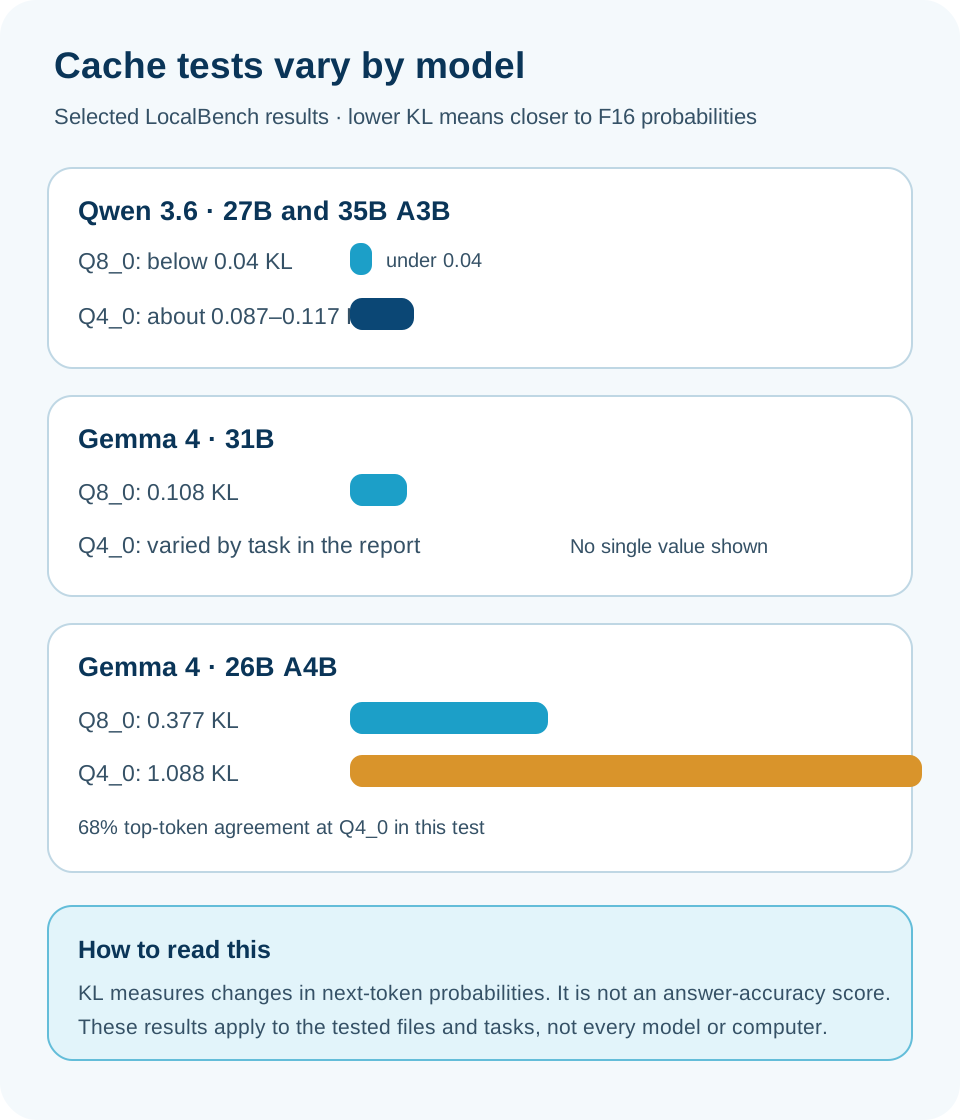
These numbers come from specific files, software, and test prompts. They do not prove that another model, version, computer, or daily task will behave the same way.
Choose a cache setting carefully
Keep F16 or BF16 when the cache fits and answer stability matters most. Try Q8_0 when you need more room. For most users, it is a sensible first setting to test because it uses less cache memory than F16 while keeping more detail than Q4_0.
Treat Q4_0 as an experiment. It may work for a model and simple chat, yet cause trouble on another model or a task that needs exact details. This matters for coding, math, tool calls, and finding facts in long documents. Keep the same prompts and compare the answers before making it your default.
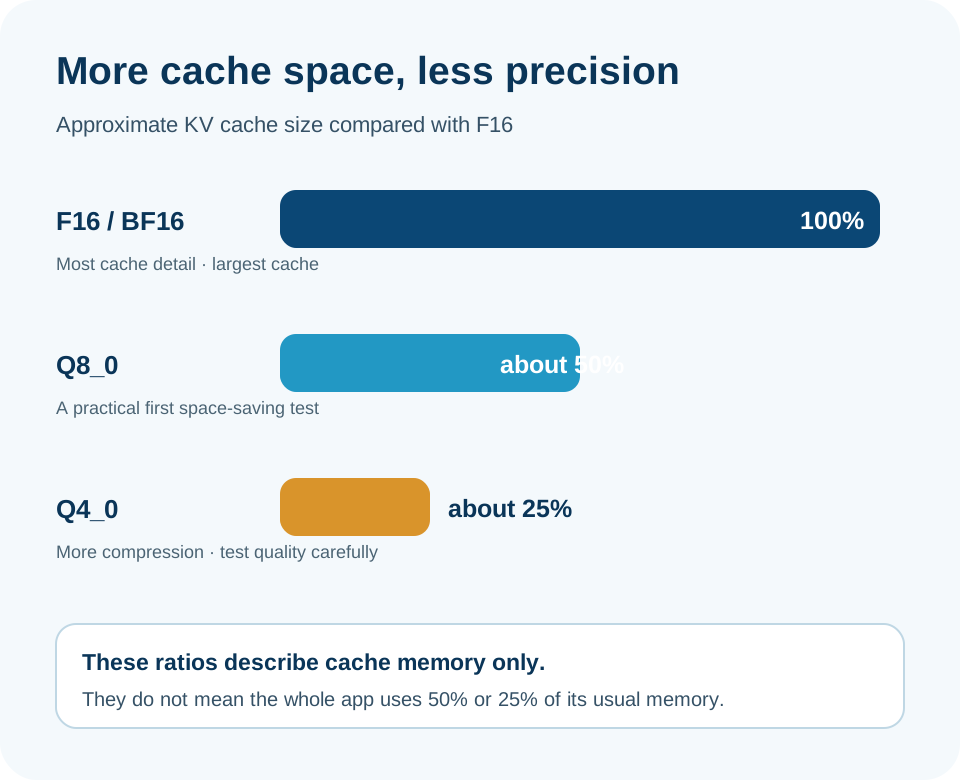
Use when memory is available or the work is sensitive.
Try this first when a long context needs less memory.
Can save more space, but answer changes may be larger.
Set it in llama.cpp or Ollama
In llama.cpp, use separate settings for the key cache and value cache. Quantized V-cache needs Flash Attention. Check your installed version's help because accepted flags and hardware support can change between builds.
In Ollama, the current FAQ documents OLLAMA_FLASH_ATTENTION and OLLAMA_KV_CACHE_TYPE. The cache choice is a server-wide setting, so it affects every model served by that Ollama process. Restart the server after changing its environment.
llama.cpp: begin with Q8_0 and a moderate context
llama-server -m /path/to/model.gguf -c 32768 -fa on --cache-type-k q8_0 --cache-type-v q8_0Ollama: set environment variables before starting the server
OLLAMA_FLASH_ATTENTION=1 OLLAMA_KV_CACHE_TYPE=q8_0 ollama serve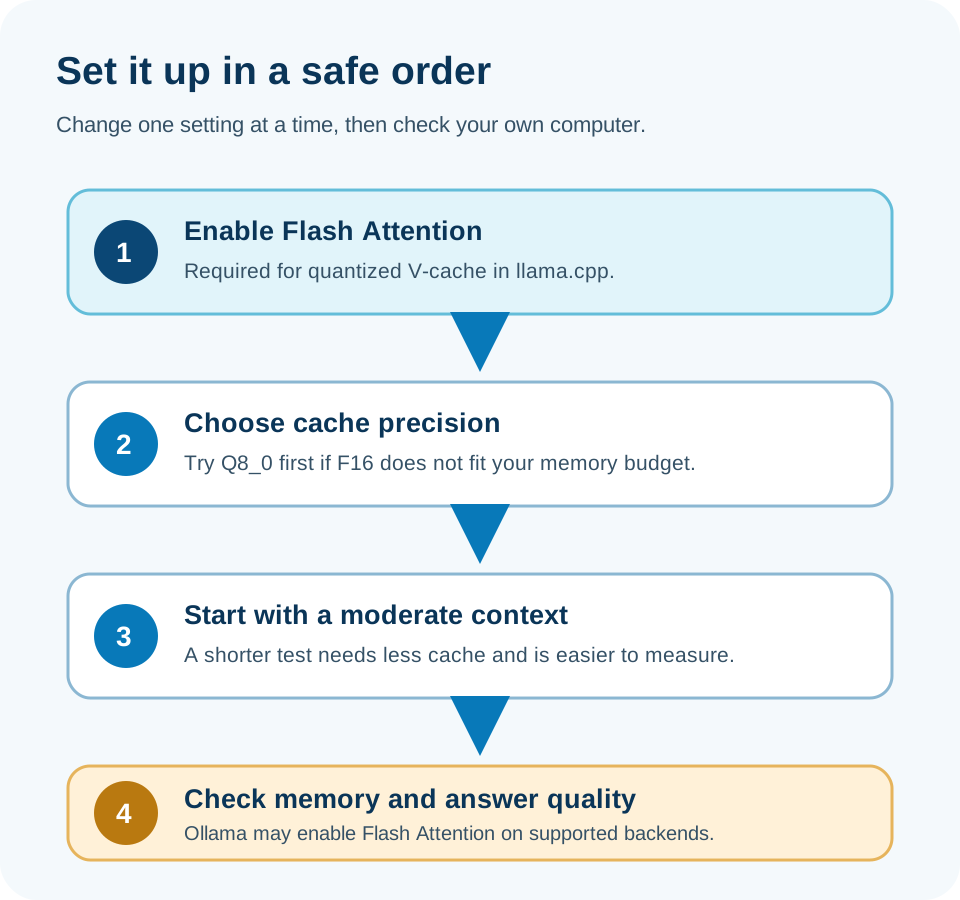
These commands set a context and cache type; they do not prove that the model fits in your GPU memory. Start with a smaller context if the model fails to load, and check the current runner documentation for your operating system.
If the model still runs out of memory
Lowering cache precision is only one option. First lower the context length. A 4K or 8K test uses much less cache than a 32K test. Then close apps that use GPU memory and reduce the number of parallel requests.
If a long prompt causes a short memory spike while it is being read, try a smaller physical batch size in llama.cpp. Its documentation says a smaller batch can use less memory, though prompt processing may take longer. Change one setting at a time so you can see what fixed the problem.
- Start with a shorter context and increase it only when the model works reliably.
- Close games, video editors, and other apps using the GPU.
- Run one request at a time while measuring memory.
- Try Q8_0 before Q4_0 if you need to reduce cache memory.
- If the computer still struggles, choose a smaller model or a model built for long context.
Words you may see in this guide
- RAM
- The working memory used by your computer and apps.
- VRAM
- The memory on a dedicated graphics card. Shared graphics may use system RAM.
- Context
- The text and other input the model can use for its current answer.
- Quantization
- A way to make model weights smaller. It can change memory use and answer quality.
- Engine
- The software that loads the model and runs it.
- RAG
- A workflow that finds useful document passages before asking a model to answer.
- Benchmark
- A repeatable test. A result is useful only when you know the setup and task.
Official facts and real user evidence
Official documentation supports product and model facts. Community discussions show real setups, failures, and questions. A community result is supporting evidence, not a promise that another computer will perform the same way.
- Ollama FAQ: context length, Flash Attention, and KV cache options ↗
- llama.cpp official CLI options: context and cache types ↗
- llama.cpp source: quantized V-cache and Flash Attention behavior ↗
- Qwen3-32B official model configuration ↗
- Meta Llama 3.1 8B model page ↗
- LocalBench: Qwen and Gemma KV cache measurements and method ↗
- llama.cpp community discussion: cache measurements and downstream answer tests ↗
Watch a real test. Check what fits your computer.
See practical local AI tests from DeviceTerra, then use MamiLens to build a hardware-aware shortlist for your own setup.
This guide is educational. Model software, licenses, and hardware support can change. Check official sources before an important deployment.