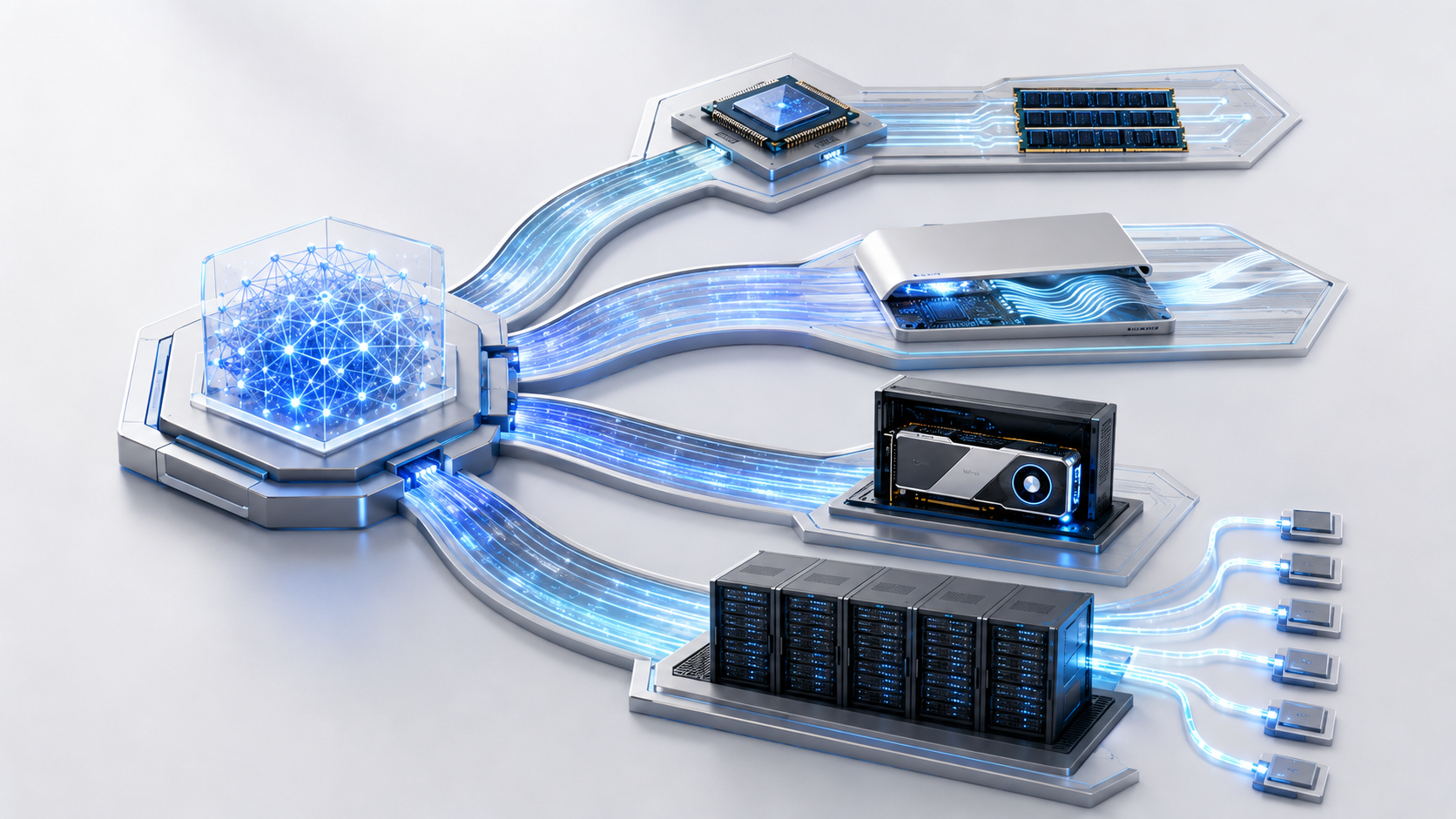
Start with Ollama when you want a simple setup. Use llama.cpp when you need detailed control over the model file, hardware, or settings.
What should you choose?
Choose Ollama for the easiest setup and local application API. Choose llama.cpp when you need direct GGUF files, detailed GPU offloading, unusual hardware support, or a runtime embedded in your own product. Most beginners should start with Ollama.
This compares the user experience and level of control, not one universal speed result.
Ollama
It handles downloads, model names, common defaults, and a background service.
Limit: It hides some low-level settings.llama.cpp
It gives direct control over GGUF files, context, GPU layers, and server options.
Limit: It requires more setup and version management.Ollama first
Its local API provides a short path from model to application.
Limit: Move to llama.cpp only when a specific requirement demands it.Do not switch engines to fix weak model knowledge or poor task design.
Use the explanations below when you want to know why each step matters.
First, what is an AI engine?
The model is the knowledge file you download. The engine is the software that opens that file and makes it answer questions.
Ollama and llama.cpp are two ways to run models on your own computer. They solve a similar problem, but they are made for different levels of control.
You do not need both to begin. Choose the one that fits the way you want to work.
Choose Ollama when you want an easier start
Ollama gives you simple commands for downloading and running models. It also runs a local service that other apps can use.
This makes Ollama useful for personal assistants, small automations, and apps that need a local AI connection.
Ollama chooses many settings for you. This helps beginners, but advanced users may want more direct control.
Choose llama.cpp when you want more control
llama.cpp works directly with GGUF model files. GGUF is a common file type for local AI models.
It lets you control how much of the model uses the GPU, how much text the model can read, and many other settings.
This can help developers and people testing unusual hardware. It can also feel confusing if you only want to open a model and start chatting.
How to compare their speed
- Use the same model and the same level of compression.
- Use the same prompt and answer length.
- Check that both tests are really using the GPU.
- Measure model loading time and answer speed.
- Check memory use and answer quality.
- Also count the time you spend setting up and fixing the engine.
An engine that is easy to update and manage may be better than one that is only a little faster.
The simple choice
Start with Ollama if you want to get a local model working quickly. Move to llama.cpp when you can name a setting or hardware problem that needs more control.
Changing the engine will not always improve weak answers. If the same model fails the same task in both engines, the model or the task design may be the real problem.
Use the easiest engine that runs your chosen model safely and reliably.
Try both engines with a small model
Ollama hides many settings so you can start quickly. llama.cpp gives you direct control over GGUF files and hardware use.
- 1
Test Ollama first
Install Ollama, open PowerShell or Terminal, and run:
ollama run gemma3:1b - 2
Save one test prompt
Ask the model to explain RAM and VRAM in five sentences. Save the answer.
- 3
Install llama.cpp
Windows users can install with winget or download a release from the official ggml-org/llama.cpp repository. Mac users can run brew install llama.cpp.
- 4
Run the official sample model
Use the command below. It downloads and runs a small GGUF model.
llama-cli -hf ggml-org/gemma-3-1b-it-GGUF - 5
Repeat the prompt
Ask the same question and compare setup effort, speed, memory, and answer quality.
- Both engines run a model successfully.
- You compared the full setup, not only speed.
- You can state which extra llama.cpp control you actually need.
Official facts and real user evidence
Official documentation supports product and model facts. Community discussions show real setups, failures, and questions. A community result is supporting evidence, not a promise that another computer will perform the same way.
Watch a real test. Check what fits your computer.
See practical local AI tests from DeviceTerra, then use MamiLens to build a hardware-aware shortlist for your own setup.
This guide is educational. Model software, licenses, and hardware support can change. Check official sources before an important deployment.