On this page
Introduction1. Demystifying the Hardware: The Three Core Types on an NVIDIA GPU2. Demystifying the Software: CUDA vs. Vulkan3. The Two Specs That Actually Decide Speed and Model Size4. What GPU Should You Buy? A Practical Buyer's Guide5. Five Rules Before You Buy a GPU for AIMatch Your Hardware Before You Spend MoneySourcesStart with VRAM, then check the exact card, software support, and power needs. Use the model-size table as a starting point and test your own setup before buying.
Here is what matters, why it matters and how to check it on your own setup.
Introduction
When buying an NVIDIA GPU for local AI, ignore gaming marketing and prioritize three specs in order: VRAM capacity first, Tensor Cores second, and memory bandwidth third—while knowing whether your software runs on native CUDA or cross-platform Vulkan.
Shopping for a graphics card to run local AI models is confusing because GPU spec sheets are written for PC gamers, not AI workloads. Terms like CUDA cores, Tensor cores, RT cores, CUDA, and Vulkan get thrown around constantly, making it hard to tell what actually speeds up an AI model and what is just noise.
Here is a plain-English breakdown of how NVIDIA hardware works under the hood—and a practical checklist of what to look for before spending money on a GPU.
1. Demystifying the Hardware: The Three Core Types on an NVIDIA GPU
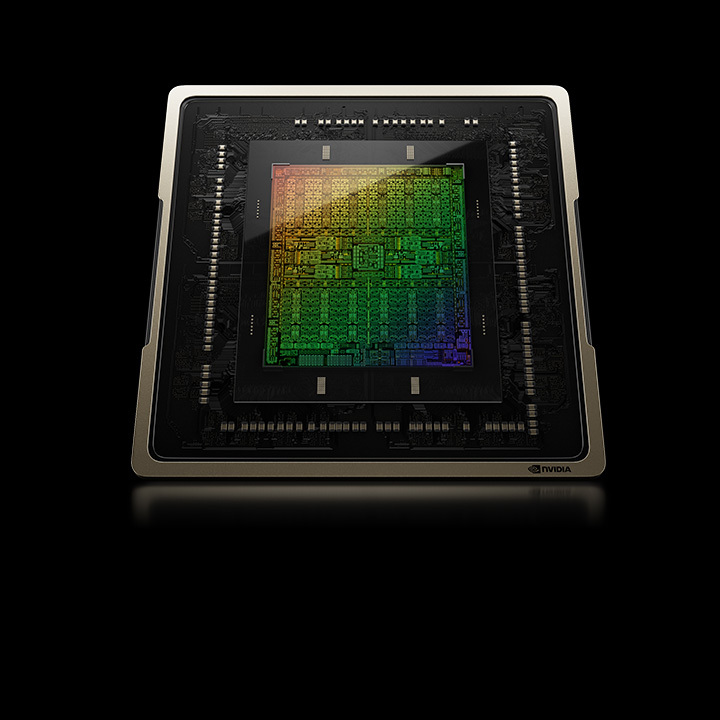
If you look inside a modern NVIDIA RTX graphics card, you are not looking at one type of processor—you are looking at three specialized engines sitting on the same chip:


- CUDA Cores (The General Workers): Think of CUDA cores as thousands of small, versatile workers. Originally built to render 3D graphics, they handle general-purpose parallel math, data movement, and utility tasks. More CUDA cores help with overall processing, but they are not the main engine doing the heavy AI math.
- Tensor Cores (The AI Specialists): Introduced in NVIDIA's RTX lineup (starting with the RTX 20-series), Tensor Cores are specialized hardware circuits built specifically for matrix multiplication—the exact math Large Language Models (LLMs) and image generators perform millions of times per second. If you buy an older GTX card (like a GTX 1080 or 1660) that lacks Tensor Cores, AI models will run dramatically slower.
- RT Cores (Ignore for LLMs): Ray Tracing cores simulate realistic lighting in video games. They do nothing for local text or coding models, so you never need to pay extra for higher ray-tracing specs.
Never buy a GTX card without Tensor Cores for AI. Any RTX 30-series, 40-series, or 50-series GPU gives you dedicated Tensor Core acceleration.
2. Demystifying the Software: CUDA vs. Vulkan
Once you have the hardware, your local AI runner (like Ollama, LM Studio, or llama.cpp) needs a software "bridge" to talk to your GPU. You will usually see two options:
- CUDA (NVIDIA's Native Platform): CUDA is NVIDIA's proprietary software ecosystem. Because almost every AI research lab builds on CUDA first, CUDA is the fastest, most compatible, and most reliable backend for NVIDIA GPUs. Features like Flash Attention, FP8/FP4 quantization, and multi-GPU splitting arrive on CUDA first.
- Vulkan (The Universal Translator): Vulkan is an open, cross-platform graphics and compute API supported by NVIDIA, AMD, and Intel GPUs. Local engines like llama.cpp and LM Studio offer a Vulkan backend so non-NVIDIA cards—or mixed-brand setups—can run AI models without proprietary drivers.
- Which Should You Use on NVIDIA? Always choose CUDA if you have an NVIDIA GPU. Keep Vulkan as a backup option if you are running an unusual Linux setup, combining an NVIDIA card with an AMD card, or testing an experimental build where CUDA drivers aren't configured yet.
3. The Two Specs That Actually Decide Speed and Model Size
Before you look at core counts, check these two numbers on the box:

- 1. VRAM Capacity (Determines Which Models You Can Run): VRAM is the dedicated high-speed memory soldered onto the graphics card. Every AI model you load must fit inside this bucket alongside your conversation context. If a model needs 10 GB and your GPU only has 8 GB, the overflow spills into your much slower system RAM—cutting generation speed by 5x to 10x.
- 2. Memory Bandwidth (Determines How Fast Words Appear): Generating text one word (token) at a time isn't limited by how fast your Tensor Cores can calculate—it is limited by how fast the GPU can read the model's weights out of VRAM. Measured in GB/s, higher memory bandwidth equals faster tokens per second. For example, a GPU with a 256-bit memory bus (around 450–670 GB/s) feels noticeably snappier than an entry-level card bottlenecked by a narrow 128-bit bus (~270 GB/s).
4. What GPU Should You Buy? A Practical Buyer's Guide
| Budget & Tier | Best Value NVIDIA GPUs to Look For | Realistic Model Capacity | Who This Is For |
|---|---|---|---|
| Entry-Level Local AI (8 GB VRAM) | RTX 3060 Ti, RTX 4060 (Skip 8GB if you can stretch to 12GB) | 7B to 8B models (4-bit quantized) | Beginners testing local chat, basic coding help, and offline notes on a tight budget. |
| Best Value Sweet Spot (12 GB VRAM) | RTX 3060 (12GB), RTX 4070, RTX 4070 Super | 12B to 14B models | The smartest entry point for serious daily use. The older RTX 3060 12GB remains a budget favorite strictly because its 12 GB VRAM fits larger models than an 8 GB RTX 4060. |
| Mid-Range Powerhouse (16 GB VRAM) | RTX 4060 Ti (16GB), RTX 4080, RTX 5070 Ti, RTX 5080 | 20B to 27B models | Developers, local RAG document assistants, and heavier reasoning workflows with long context. |
| Enthusiast & Workstation (24 GB–32 GB VRAM) | Used RTX 3090 (24GB), RTX 4090 (24GB), RTX 5090 (32GB) | 30B–35B dense/MoE (or 120B–145B via SSD streaming) | Multi-agent workflows, vision models, local coding servers, and small-business deployments. |
A 12 GB desktop version exists
Desktop card specification
The exact version matters
Desktop card specification
Desktop card specification
5. Five Rules Before You Buy a GPU for AI

NVIDIA laptop specifications
NVIDIA desktop specifications
- Choose Higher VRAM Over Newer Generation: A used RTX 3060 (12 GB) or RTX 3090 (24 GB) will run larger, smarter AI models than a newer card with only 8 GB of VRAM.
- Watch Out for Laptop GPUs: A laptop "RTX 4070" usually has only 8 GB of VRAM and lower power limits, whereas a desktop RTX 4070 has 12 GB of VRAM. Always verify the exact VRAM spec before buying a laptop.
- Check Your Power Supply & Case Size: High-VRAM cards like the RTX 3090, 4090, and 5090 draw 350W to 575W+ and require spacious cases and quality power supplies.
- Plan for Cooling & Noise: AI generation pushes Tensor Cores to 100% sustained load—unlike gaming where loads fluctuate. Prioritize cards with triple-fan coolers if you run long batch tasks.
- Test Before Upgrading: You may not need a new GPU at all if a compact 4B–8B model already handles your daily task on your current machine.
Match Your Hardware Before You Spend Money
Whether you are testing the GPU you already own or comparing two cards before buying, check what models actually fit inside your VRAM budget first.
👉 Run your specs through the MamiLens Local AI Calculator to see verified model matches, or book a $25 Personal Buying Review if you want Deviceterra to verify a hardware purchase before you spend money.
Words you may see in this guide
- RAM
- The working memory used by your computer and apps.
- VRAM
- The memory on a dedicated graphics card. Shared graphics may use system RAM.
- Context
- The text and other input the model can use for its current answer.
- Quantization
- A way to make model weights smaller. It can change memory use and answer quality.
- Engine
- The software that loads the model and runs it.
- RAG
- A workflow that finds useful document passages before asking a model to answer.
- Benchmark
- A repeatable test. A result is useful only when you know the setup and task.
Official facts and real user evidence
Official documentation supports product and model facts. Community discussions show real setups, failures, and questions. A community result is supporting evidence, not a promise that another computer will perform the same way.
- NVIDIA Ada architecture: official CUDA, Tensor, and RT Core visuals ↗
- NVIDIA CUDA programming guide and GPU memory model ↗
- NVIDIA GeForce RTX 3060 family specifications ↗
- NVIDIA GeForce RTX 40 Series desktop specifications ↗
- NVIDIA GeForce RTX 50 Series desktop specifications ↗
- NVIDIA GeForce RTX 40 Series laptop specifications ↗
- NVIDIA Ada memory subsystem diagram and VRAM explanation ↗
- Official Vulkan API documentation ↗
- llama.cpp official backend feature matrix ↗
- Phoronix benchmark chart comparing CUDA and Vulkan on RTX 4070 ↗
- NVIDIA GeForce generation comparison ↗
Watch a real test. Check what fits your computer.
See practical local AI tests from DeviceTerra, then use MamiLens to build a hardware-aware shortlist for your own setup.
This guide is educational. Model software, licenses, and hardware support can change. Check official sources before an important deployment.