On this page
The short answerFour things share the memory budgetModel size is not the same as file sizeA careful starting point by VRAMWhy CUDA matters, and what it does not doWhen the model is bigger than VRAMA safe first test in Ollama or LM StudioWhat a benchmark can tell youBefore choosing a graphics cardSources and limits of this guideSourcesVRAM is a major limit, but the model file is only one part of the memory budget. Match the model, context size, software, and exact graphics card, then test before relying on it.
Here is what matters, why it matters and how to check it on your own setup.
The short answer
An NVIDIA graphics card can make local AI respond faster because its GPU can do many calculations at once. The card’s own memory is called VRAM. More VRAM usually lets you keep a larger model, or more of a model, on the card.
But VRAM is not the only thing that matters. The model also needs room for your conversation, the software that runs it, and temporary calculations. A model that downloads successfully may still need more memory when you use it.
Use the examples in this guide as careful starting points. They are not guarantees for every computer. The exact GPU, its driver, model file, settings, and other open apps can change the result.
Check the exact VRAM amount on the exact card. Similar GPU names can have different memory sizes, and laptop versions can differ from desktop cards.
Four things share the memory budget
When an AI model runs, the graphics card needs room for more than the model’s learned values, called weights. It also needs working memory for the conversation and for the software to do its calculations.
The conversation memory is often called the KV cache. It helps the model keep track of earlier text. A longer chat, a large document, or a larger context setting can use more of it. The operating system, screen, and other programs may also be using VRAM.
The card must fit the model and its working space together. A larger context gives the model more room to read, but it can also need more memory.
- Model weights: the model’s learned values. A smaller, compressed file usually needs less memory.
- Conversation memory: space for the prompt, chat history, or document the model is handling.
- Software workspace: temporary space used by the AI app and GPU calculations.
- Other use: the desktop, browser, games, and other programs may already occupy some VRAM.
Model size is not the same as file size
A name such as 8B means the model has about eight billion learned values. It does not mean the download will be 8 GB. The file size depends on how those values are stored.
Quantization is a way to store model values with fewer bits. It can reduce the file size and memory need, though the exact quality and speed depend on the model and file. A Q4 file stores values at a lower level of detail than a Q8 file. The number is a clue, not the full story.
As one concrete example, Ollama lists its Qwen3 4B file at about 2.5 GB, Qwen3 8B at 5.2 GB, and Qwen3 14B at 9.3 GB. These are download sizes for those particular files. They are not total VRAM requirements.
Smallest of these three examples
Leaves less room on an 8 GB card for chat memory and software
File alone is larger than an 8 GB card’s memory
A careful starting point by VRAM
This table uses real Qwen3 download sizes to show why different cards need different starting points. “Try” means test with a short conversation and check memory use. It does not mean the model will always fit fully on the GPU.
For the smoothest first test, close games and other heavy programs, choose a short context, and leave memory for the app and computer. If the model does not fit, a smaller model is usually the easiest fix.
| Available VRAM | Good first test | What to expect |
|---|---|---|
| 4–6 GB | Qwen3 4B · 2.5 GB file | A sensible first test. Leave room for context and the desktop. |
| 8 GB | Qwen3 4B; try Qwen3 8B · 5.2 GB file | The 8B download leaves only about 2.8 GB before other VRAM use. Use a short context and check actual usage. |
| 12 GB | Qwen3 8B; try Qwen3 14B · 9.3 GB file | The 14B file leaves about 2.7 GB before other use. It may need a shorter context or partial GPU use. |
| 16 GB | Qwen3 14B · 9.3 GB file | More room for context and other use. Larger files still need a memory estimate and test. |
| 24 GB or more | Qwen3 14B; test Qwen3 30B · 19 GB file carefully | A 19 GB download does not leave much room on a 24 GB card. A long context can push it over the limit. |
A 24 GB card does not make every 19 GB model comfortable. VRAM must also hold conversation memory, the app’s working space, and anything else using the GPU.
Why CUDA matters, and what it does not do
CUDA is NVIDIA’s software system for using NVIDIA GPUs to do computing work. Many local AI tools support NVIDIA GPUs through CUDA, which is one reason NVIDIA cards are common for local AI.
CUDA is not a model, and installing it does not make every model fit. The AI app needs to support your GPU, your driver must work with the app, and the model file must be supported by that app. Some tools package what they need; others have their own setup steps.
Ollama documents NVIDIA GPU support. LM Studio offers a GPU setting that can place all or part of a model on the GPU, and its tools can estimate memory use before loading. The available choices depend on your computer and model.
- Use a current driver from NVIDIA that supports your graphics card and operating system.
- Install Ollama or LM Studio from its official website.
- Check the app’s GPU and memory information after loading a model.
- If the app uses the CPU as well as the GPU, expect a different speed from a full-GPU run.
When the model is bigger than VRAM
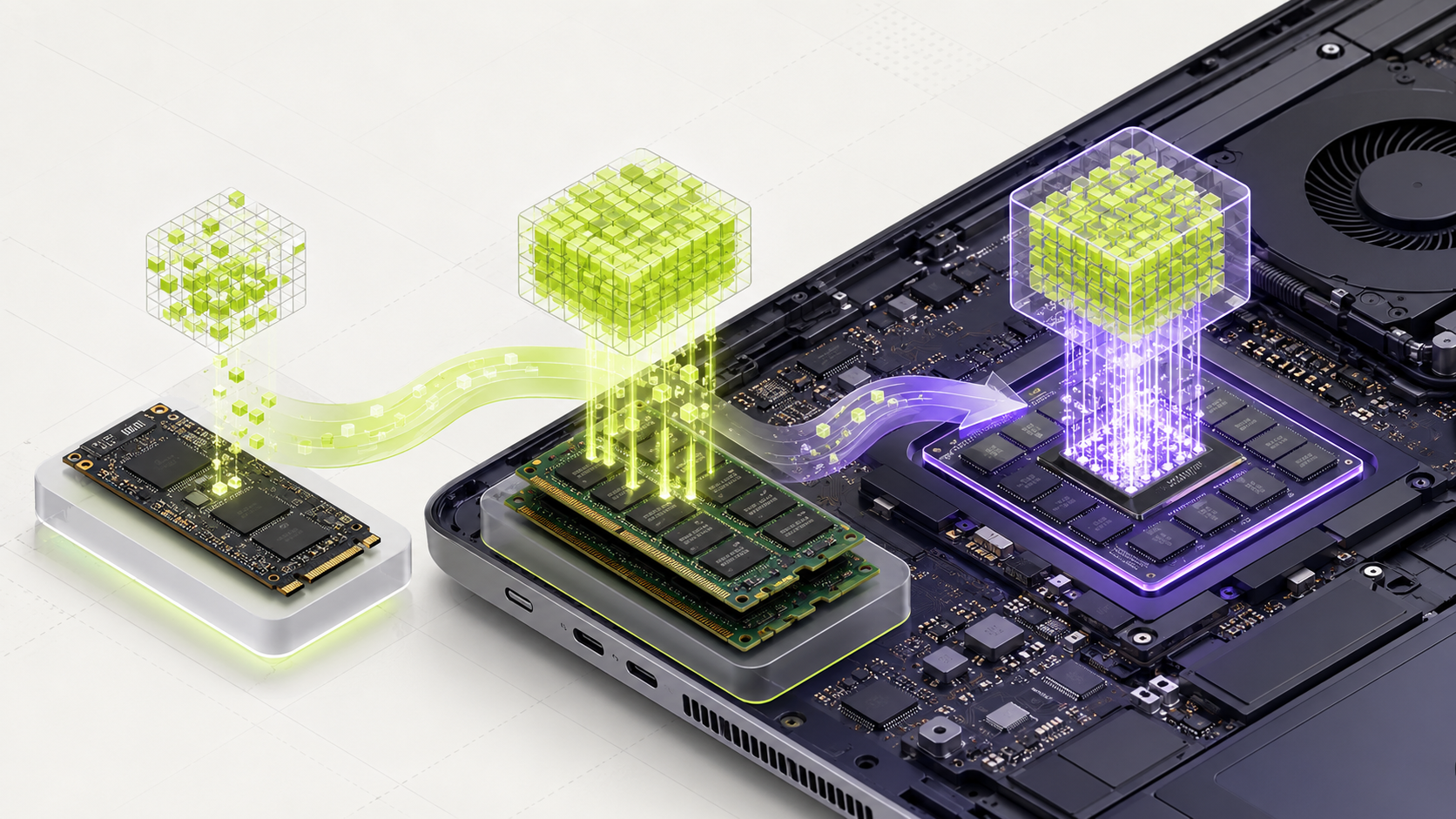
Some AI apps can place part of a model on the GPU and keep the rest in your computer’s main RAM. This is called partial GPU offload. It can let a larger model run when it would not fit entirely in VRAM.
This can be slower because the computer has to move data between system RAM and the graphics card. How much slower depends on your hardware, model, app, and settings. A mixed setup is not automatically unusable, but you should measure it before choosing it for daily work.
If the answer takes too long, try a smaller model, a shorter context, or fewer open programs. Compare the same prompt in each test so the result is useful.
A model opening successfully only proves that it can start. Test how long the first answer takes and how quickly the rest appears.
A safe first test in Ollama or LM Studio
Start with a model whose listed file size is clearly below your free VRAM. Qwen3 4B is one documented example at about 2.5 GB in Ollama. Your actual memory use will be higher than the download size, so begin with a short context.
Ollama example
ollama run qwen3:4b- Write down your exact GPU name and VRAM amount. On Windows, Task Manager can show dedicated GPU memory.
- Close games, video editors, and other programs that use the GPU.
- Download the model from the app’s model list or its official library.
- Start with a short context, such as 4,096 tokens, if the app lets you set it.
- Ask five questions you know how to check. Note answer quality, first-response wait, typing speed, and memory use.
- Repeat with a larger model only if the first one leaves enough free memory.
What a benchmark can tell you
A speed result is only useful when you know what was tested. The model file, quantization, GPU, context length, software version, and test prompt can all affect the result.
Ollama has published a test using Gemma 3 12B on one RTX 4090 at a 128K context. It reported 52.02 generated tokens per second with an older memory scheduler and 85.54 with a newer one. The newer setup used 21.4 GiB of VRAM instead of 19.9 GiB. This is evidence that software and context settings matter; it is not a speed promise for another card or model.
A token is a small piece of text. It can be a whole short word or part of a longer word. Tokens per second is a rough measure of how quickly text appears, not a measure of whether the answer is correct.
19.9 GiB reported VRAM
21.4 GiB reported VRAM
Before choosing a graphics card
Buy for the memory size and work you need, not only the card’s name or gaming speed. Check the exact model’s VRAM, price, power needs, computer space, and whether it fits your motherboard and power supply.
NVIDIA’s own specification pages show why checking the exact version matters: the RTX 3060 family includes cards with different memory amounts, including 12 GB and 8 GB versions. The label “RTX 3060” alone is not enough to predict which models fit.
If you already own a card, test before buying anything. A smaller model that answers well and quickly can be a better choice than a bigger model that uses all your memory and responds slowly.
- Check the exact VRAM printed in the seller’s listing and manufacturer specification.
- Check the price of the full upgrade, including power supply or computer changes.
- Look for a test using the same model, file type, context, and similar GPU.
- Use the MamiLens calculator to make a shortlist, then verify the app’s current requirements.
Sources and limits of this guide
The model file sizes and benchmark numbers below come from the software makers’ own published pages. They are useful, checkable facts, but they are not independent lab tests. The VRAM table is a cautious guide built from those file sizes and the extra memory the apps describe. Your own test is still the final check.
Words you may see in this guide
- RAM
- The working memory used by your computer and apps.
- VRAM
- The memory on a dedicated graphics card. Shared graphics may use system RAM.
- Context
- The text and other input the model can use for its current answer.
- Quantization
- A way to make model weights smaller. It can change memory use and answer quality.
- Engine
- The software that loads the model and runs it.
- RAG
- A workflow that finds useful document passages before asking a model to answer.
- Benchmark
- A repeatable test. A result is useful only when you know the setup and task.
Official facts and real user evidence
Official documentation supports product and model facts. Community discussions show real setups, failures, and questions. A community result is supporting evidence, not a promise that another computer will perform the same way.
Watch a real test. Check what fits your computer.
See practical local AI tests from DeviceTerra, then use MamiLens to build a hardware-aware shortlist for your own setup.
This guide is educational. Model software, licenses, and hardware support can change. Check official sources before an important deployment.